Revit MEP

Revit MEP
Showing posts with label bim. Show all posts

Monday, November 21, 2011

Using Revit as a Team. Use Same Builds.

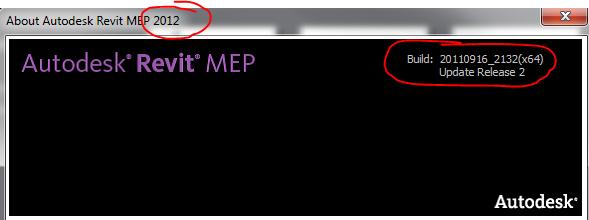
When using Revit on a project, make sure everyone on the team is using not only the same version, (2011, 2012, etc), but the same build number as well.  The build number can be found by clicking on the question mark pull down in the upper right corner, and click the About button….

From there, you’ll see the splash screen of the version, and the build.  The first 4 numbers in the year the build was released, (2010) The next 2 are the month of the release, (09-September), the next 2 are the day of the release, (03-third).  The last four are the actual build number 2115, and the service pack number is new to the newer versions.  Might not be shown for earlier versions.


I’ve seen fatal errors in Revit when teams are using the same version, but different build numbers, and users are syncing their builds local file to the central file, and the central file is receiving updates from multiple builds, when there have been some changes to the software code, and there is a discrepancy  between two items, one new version, one old version, and Revit doesn’t know what to do. 

In order to make sure everyone is using the same build, everyone should be using the latest build.  For 2011, its build 20100903_2115 Web Update 2 Service Pack.  For 2012, it’s build 20110916_2132 Update Release 2.

Tuesday, November 01, 2011

Armacell Insulation Taking Advantage of Revit MEP 2012 Enhanced Insulation Objects

Designers and engineers who use Revit 2012 MEP building design software can add mechanical insulation to their designs with this Module.

Armacell's most popular insulating products are incorporated into the BIM Module:

  • AP Armaflex closed cell elastomeric foam insulation for piping components and ducts
  • AP Coilflex highly conformable, pliable elastomeric thermal ductliner
  • Tubolit flexible, closed-cell polyolefin/polyethylene pipe insulation for cost-efficient thermal insulation of domestic heating and plumbing lines
  • ArmaTuff thermal mechanical insulation with UV protection for outdoor applications
  • NH/Armaflex halogen free, flexible elastomeric insulation material for marine and offshore environments.
  • UT Solaflex EPDM thermal insulation for high temperature, UV-resistant and oil-resistant applications


Monday, October 03, 2011

Project Spark - A future Revit LT?


Project Spark is a technology preview of a new future Revit Architecture (BIM) solution. Using Project Spark, building professionals can create designs efficiently with real-world building objects, produce more reliable documentation faster, and share files with consultants using Revit or AutoCAD-based products.

Project Spark looks like a striped down version of Revit and does not support conceptual design, analysis, rendering, advanced collaboration, and API.  It may turn out to be a Revit LT version of sorts.  I would guess they would come out with all flavors of Revit, but they are only testing the architectural version.  MEP and Structural hopefully would be available when released.
Currently, you cannot open Revit Architecture or Revit MEP 2012 in Project Spark. Files created in Revit are not supported in Project Spark. However, Revit 2012 files can be linked into Project Spark.
You also cannot open Project Spark files in Revit Architecture or in Revit MEP 2012.  Because Project Spark uses a newer Revit file format, it is not currently possible to open files created in Project Spark with Revit 2012.

They're looking for feedback on the overall concept, usability, and learnability of the product.

You can download the preview here.


You can view the tutorial here

Friday, June 24, 2011

ElumTools - The first fully-integrated Add-in lighting software for Autodesk Revit


ElumTools is from Lighting Analysts, Inc. who produces calculation tools for the architectural lighting marketplace. Today, they author four design tools for the lighting industry: AGi32, Photometric Toolbox, FlashTools, and the newest addition, ElumTools, a fully integrated lighting calculation add-in for Autodesk Revit.

This new tool will be a much more efficeint way of doing point-by-point lighting calculations rather than importing 2D plans into AGI, creating 3D spaces and 3D objects that are representing the rooms in AGI, (which has already been done by the architect in Revit), so why redo that work?  Then as the model updates and changes, you have to redo all that work of reimporting the 2D autocad file, and recreate the 3D spaces and 3D objects.  That takes a lot of time.  Using a software that is an add-on of Revit, you can do the calculations right within Revit, and not have to continuously update separate models.  (Construction document Revit model, and the AGI lighting calculation model.)  Then when you make changes to your light fixtures, you make those changes in the Revit model only, (one place) instead of making the changes in the Revit model and in the AGI model. 

SNIP FROM THEIR WEBSITE:
The growth of BIM (Building Information Modeling) software is exploding, and in many architectural design and engineering firms it is almost completely replacing CAD software for the purposes of architectural and building system design. To date, the industry standard illumination design software programs lack the ability to easily exchange information with models in the BIM environment. The reason for this is two-fold: current illumination software utilizes a complete environment approach to the calculation of illuminance, which is burdened by the large size of the BIM model, and the complexity of exported geometry from BIM is beyond the needs of practical calculation of workplane or surface illuminance. With today’s illumination design software not getting the job done, there remains a need to quickly compute basic illuminance from electric sources within individual environments in a BIM model and tabulate the results in a way consistent with the behavior of the BIM software.

What is ElumTools?
ElumTools is a calculation Add-in used to predict the performance of electric lighting systems within the Autodesk® Revit® Architecture or MEP software. With ElumTools the need to utilize external software to compute illuminance from light sources placed in Revit is no longer necessary.
When ElumTools is installed in Revit, it appears with its own tab on the top menu bar. Selecting the ElumTools tab reveals the icons for the various ElumTools commands.
How does ElumTools work?
The entire concept of ElumTools as a Revit Add-in is based around the ability to leverage content that is already present in the Revit model. Utilizing existing content from Revit allows the lighting software functionality to be simplified to only those tasks necessary for the accurate modeling of light.
The accurate calculation of illuminance on a workplane or surface requires the following components: surface geometry, surface reflectance/color, luminaire locations and luminaire photometry. ElumTools is able to extract surface geometry in the form of “Rooms” or “Spaces” as defined in Revit Architecture or MEP, or if necessary, the user can simply select the surfaces to be included in the calculation using Revit commands. Surface reflectance and color can be interpreted from the Revit “Graphics Shading” properties of the surface and “mapped” to more suitable reflectances and/or colors if desired. Luminaire locations already present in Revit can be consumed by
ElumTools and photometric file associations created if not already present.
With these elements known, ElumTools has the information required to utilize a radiosity process to compute the lighting for the selected geometry and present an interactive visualization depicting the luminous exitance of all surfaces. However, there is an additional fundamental need to allow the user to assign calculation sampling points to any surface or workplane to verify illuminance present from the Revit layout of luminaires. This is easily accomplished using ElumTools’ Calculation Points command.
With materials mapped, luminaires defined and sampling points placed, ElumTools calculation commands enable the computation of the selected geometry. Revit-defined Rooms or Spaces can be computed alone or as a group if they contribute light to one another. The computed results can then be examined in an interactive visualization window (a separate window for each Room or Space) and point-by-point results seen directly in the Revit model. Finally, all statistics are available to Revit’s scheduling tools for summary and inclusion in the BIM model.
Anatomy of a typical workflow
Manage luminaires – This is the process of assigning all of the necessary elements to each luminaire family within the Revit model that will be used for lighting calculations. Required input includes: a valid photometric file in IES format (LM-63), assignment of a light loss factor and a validity check on lumens and watts figures as retrieved from the manufacturer’s photometric file.
The ElumTools Luminaire Manager provides simple access to the necessary inputs for all luminaire families. The luminaire list can be shortened to show only luminaire families currently in use in the Revit model, if desired.
Map materialsElumTools has access to the “Graphics Color” in Revit for all materials in the model, allowing the reflectance of the surfaces to be calculated from the RGB color.* If a Revit graphics color is not an accurate color from which to calculate reflectance, it is necessary to map that surface to a different and more appropriate color. Glass and other translucent or transparent materials must also be mapped to the appropriate surface type in ElumTools for accurate lighting calculations.
The Materials Mapping feature in ElumTools is very easy to use. All Revit materials are listed on the left side of the dialog and ElumTools materials on the right. The drop-down selection in the center allows individual materials to be mapped from Revit to ElumTools and vice-versa, or ignored entirely. Additional pull-down menus allow the selection of color, reflectance, surface transparency and more (Advanced Properties button).

*As of the release of Revit 2012, the Revit Application Programmers Interface (API) provided by Autodesk does not provide access to the materials’ “Render Appearance” information. This may change in a future release providing more accurate material color and reducing the need to map some materials.
Locate point-by-point areasElumTools makes it easy to assign a grid of sampling points to your choice of surfaces and workplanes in the Revit environment. Simply select the Calculation Points command and drop an instance of the sampling points family on surfaces as required. The points will automatically attach only to the selected Revit surface. Other surfaces such as windows or doors would not be included and could be covered with another instance of the family, if necessary. Workplane calculations are simply points on the floor with an offset equal to the workplane height.
Calculate Room or Space – Rooms and Spaces are spatial placeholders created by Revit Architecture and MEP. If the Revit model does not have Room or Space designations, it is only a matter of a few clicks to add them.
ElumTools allows the calculation of either Rooms or Spaces using a single or multiple selection technique. When selecting multiple Rooms or Spaces, ElumTools allows multiple calculations to be performed simultaneously on multi-threaded processors. If separate environments may exchange light with one another, they can be computed in a single execution.
Calculate Other Geometry – Occasionally it is necessary to select all the elements to be included in a calculation independently of Revit Rooms or Spaces. ElumTools provides the capability to select all elements to be considered manually using Revit commands and compute the propagation of light within this subset.
Interactive visualizationElumTools provides a fully interactive visualization in a pop-up window as a by-product of every calculation. This rendering is designed to allow validation of lighting results (are all my luminaires included?) and a verification of the behavior of light and surface (scalloping from downlights on an adjacent wall). The visualizations are fully navigable, and additional evaluation tools are available, such as scaled pseudocolor analysis, radiosity mesh display and visibility of sampling points.
View point-by-point results in Revit – The illuminance values at all sampling points placed in the Revit model can be seen directly in Revit. The appearance of the value color can be changed using Revit’s Analysis Visualization Framework (AVF) to scale the gradient of illuminance values for improved readability.
Schedule – All illuminance statistics computed by ElumTools are available to be summarized with Revit’s schedule feature.
Exceedingly simple & efficient
The concept of computing the lighting results directly within the Revit environment using a Space by Space (or Room by Room) methodology fosters a fast and efficient workflow, removing the long calculation times associated with the whole-environment approach of external software. Designers can utilize the software as a design tool on an iterative basis as needed. Point-by-point results provide validation of required lighting criteria, and interactive draft visualizations yield an understanding of the lighting system only possible with radiosity rendering.

Unlike many of today’s all-encompassing lighting simulation programs, the ElumTools software is exceptionally intuitive, streamlined and approachable. By design, the software can be productive for any Revit user with basic lighting knowledge, and very little if any training is required.

ElumTools Licensing
For the initial release ElumTools is available in a single user license configuration only. A single user license can be installed on one computer at a time. Once registered, ElumTools is licensed to that computer only. This is a perpetual license for use with Revit 2012 only.

Subscription Plan
ElumTools is sold initially with a free one-year membership to the subscription plan. This means all product releases are available for download from your account at no charge until one year from your purchase date. At that point you may elect to renew the subscription plan to continue to receive product releases.

Tuesday, March 22, 2011

Revit MEP 2012 New Features

I've been kicking the tires on the beta release of Revit MEP 2012 for the past few months, and I am really looking forward to using the new version.  In last years 2011 version, most improvements came from the enhancements to the electrical portion of the software.  This year, plumbing was the big winner.  Trying to create plumbing systems that worked in real world designs took a lot of effort to make work.  Especially sloped pipe.  A lot of firms used workarounds and created Revit plumbing layouts based off of pipe types or worksets or other means other than by system as Autodesk had intended.  It now looks as though firms should rethink these workarounds, and actually create pipe systems based off of real pipe types the way Autodesk intended it to be used.  Of course, there are other enhancements to existing tools, and totally new tools and features that were added as well. 

Even though there are numerous improvements to the software that will make our Revit MEP world a lot easier, we can't open the box, install the software, and just jump into the new version on our next project.  One of the disadvantages of a user of MEP, is that we have to follow the architects lead.  While there are enhancements in Revit Architecture, the architectural new features aren't as much of a game changer as the new features in Revit MEP.  The Revit Architecture software is on it's 25th release in 11 years while Revit MEP is on its 7th release in 5 years.  So it isn't as mature as it's architectural big brother.  So architects might not see the need to upgrade until maybe June... September... or even next year on their projects.  And because project teams should always work in similar Revit build numbers, MEP users might not have the chance to become more productive with the new features until an architect decides to either A) Upgrade an existing project, or B) Start a new project in the new 2012 version.

But when teams do decide to work in 2012, this is just a few of the things you have to look forward to.
  • Tagging Elements in Linked Files.   I'm not sure on this first feature.  I'm sure I'll find a way this feature will help me in the future, but right now, it just confused me as to where my room/space tags were derived from.  Were they created from the copy rooms feature, or are they tagged from the linked file?
  • MEP Fixture Copy/Monitor improvements.  This was one of my favorite 2011 new features, and it just got better.  When an architect takes the time, and places generic plumbing fixtures and generic light fixtures in their model, why spend our time repeating their work?  With the copy/monitor tool, we can swap out all of the architects fixtures with MEP fixtures that match our specifications.  And now there are more fixture types that we can do this swapping with.  There was a stadium type project I was working on, where there were hundreds and hundreds of water closets in the project.  It would have taken me hours to place our spec WC over the architects generic WC for all the locations.  But using the Copy/Monitor tool, I had all of our Kohler WC families replace the architects "out-of-the-box" Revit WC.  And when the architect decided to move those fixtures 12 inches to the left, I received a notification that they moved because my fixtures were monitoring their fixtures.  Love this tool.
  • Revit Server. Will now support running either Revit 2011 and/or Revit 2012 projects.  Also supports the new worksharing enhancements in 2012.  (See worksharing enhancements below).  Using Revit Server in an office environment that has multiple offices connected over the LAN, this tool is essential to becoming more efficient.  Trying to create a local Revit file over the LAN will take forever, and while the file is opening, it will tie down the central file making it impossible for current uses to modify elements that haven't been checked out or save to central.  In the past, I was asked to make a construction bulletin that would take me about 5 minutes, but opening my local file took over an hour over the LAN.  Thank goodness for multi-tasking.
  • Worksharing Enhancements.  It surprising to me how long this feature has been in the software, and never worked right.  It seems like it was a placeholder for something bigger and better to come.  Well, that time might be now.  When you wanted to modify a fixture or system, and it was being used by another user, Revit had a dialog box that made it seem like you could make a request through Revit, and ask that user to relinquish it.  But that user need to open the "Editing Requests" dialog box to see these requests.  And that never happened at a time when you needed it to happen, like right now.  So you ended up just calling them on the phone.  Then there was the Worksharing Monitor Add-In.  This at least had a dialog box that could stay open while you were working that you could throw up on a second monitor or something so that you could see these requests as they happened.  But A)It was a separate install that seemed to never get installed. and B) It was a separate program that needed to be opened and running after you opened Revit.    Well, now that we have a little background, here is a couple of the new features.  First is that you could never disable worksharing.  Once you enabled worksharing on a project, that project was going to be workshared forever.  Second, you can set the visibilty of worksets in a view template now.  Third, there are new color display modes allowing users to visualize owners of objects by color, or ownership status of elements by color, or elements that are out of date by color, or which elements are assigned to particular worksets by color.  It can be toggled on and off.  Fourth, Revit now provides balloon notifications when editing requests are placed, granted, and denied.  So now you don't have to check the Editing Requests box to see if someone is waiting on you, or install the Worksharing monitor and open a separate dialog box to check these requests. 
  • Starting View.  This was a known issue, that Revit opened slow if the last view that was open when the project was saved, was a complex view.  So users had to remember to create a simple view, usually with just text of the project name and number, and to have that as the last view open when saving and closing the project down.  But now there is a setting under the Manage Tab, where you can specify which view you want to be the Starting View so users don't have to remember which view they should go to when saving the project.
  • Workset changeable without editablity. In the properties palette, the workset parameter can now be edited without first borrowing the element.  Before, that parameter was greyed out until you had ownership of that element.
  • Enhancements to DWG Export tool. The export setting are displayed on a series of tabs making it easier to map layers, lines, patterns, text and fonts to AutoCAD styles.
  • Locking 3D Views and Tagging 3D views.  This is a biggy.  In the past, you could only put dumb text in a 3D view.  Never a smart tag.  And if you rotated that view, the text would skew because it was on another plane.  Now, as long as you lock a 3D view down, (which is new) you can tag a Revit element.  You won't be able to lock the default 3D view, but create a copy, and that one will be lockable.  Just beware, you can't tag a room/space in a 3D view.
  • Schedule and Legend Creation from Project Browser.  This is nice.  Before, you had to open up the Views Tab on the ribbon to create a view of these types.  Now just right click on Schedule or Legend in the project browser, and create new.
  • Save all Families.  Users can save all families that are loaded into a project to a directory.  This is nice for helping create future project templates.  You might finish a hospital project using a lot of hospital families, and you want to now create a Revit hospital project template.  You can now save those families in a batch type of method from the previous hospital project and load them into your new template.
  • Round Function in Formulas.  Values in formulas can be now rounded up or down. Round(x), Roundup(x), rounddown(x).
  • Materials.  There is significant changes to using materials in elements in Revit 2012.  While there is a significant amount of work "under the hood" that is not user visible, the items that are available to users this version focus around efficiency in managing materials within Revit, and introducing a library concept that will be extended in the future.
  • WikiHelp.  Revit online help is now provided as WikiHelp. In addition to viewing the Autodesk-provided help content, users can rate and comment on content, and they can add their own articles, images, and videos. If you are online and you access context-sensitive help (click a Help button or press F1), by default you go to the WikiHelp. If you are offline and access context-sensitive help, by default you will go to a locally stored copy of the help system.
  • Sloped Piping.  A user can now create the pipe slope values in the Mechanical Settings. The slope values can be transferred from project to project.  This new method, along with additional new sloped fittings seems to allow the creation of sloped piping systems much easier and consistent.  There still needs to be best practices and methods that should be followed when creating sloped pipe.  You won't be able to just draw sloped pipe in any direction from any starting point.  There needs to be a thought out strategy to where you are going to start your main sloped pipe system, and where it's going to end, and how it's going to be integrated by the fixtures.  It was hard, but I've had success creating sloped piping in previous versions, but this version is much less work and headache to create a sloped system.  I'm not saying it's going to be easy, but with a well laid out plan, you can be very successful creating sloped pipe is a rather short period of time.
  • System Browser.   This was always an overlooked feature in the past because so many engineers just wanted construction documents and not an engineered system.  So systems were rarely created in MEP projects.  But this tool should be used more for multiple reasons, but one is just based off of better performance of the model.  Unconnected systems dramatically decrease the speed of the project.  You can view all of the connected and disconnected systems from the System Browser.  Selecting elements in the system browser also selects the element in the project.  And if you press Shift or CTRL, you can select multiple connectors.  Also, in the old version, if you selected elements in your model, they were not selected in the system browser.  Now they will be selected in both areas when you pick them.
  • Graphical Overrides for Duct and Piping Systems.  You can now create and name duct and piping system types from a predefined set of "basic" system types. A duct or piping system type contains properties for graphical overrides. You have the ability to control the color, line weight, and line pattern for the collection of objects assigned to a system using these. The graphic overrides applies to the project, they are not view specific like Filters are.   Similar to other system families, the duct and piping system types are now available in the Project Browser similar to how pipe types are in the Project Browser. The duct and piping system types are sorted under Families in the family category folder "Duct Systems" and "Piping Systems".   Use the "Other" system type when creating a custom system of a type that is not native to Revit MEP.  For example, if you wanted to create an Oxygen System, duplicate the Other system type and rename it to Oxygen. You can get to the system type properties for a particular duct or pipe by pre-selecting the element and pressing Tab until the system is highlighted. With the system selected, in the Property palette, click Edit Type to access the type properties of the system.  In the Type Properties dialog for duct and piping systems, click Graphic Overrides to display a dialog where you can override the Line Weight, Color, and Line Pattern.  The "system" overrides for the graphic attributes are prioritized between Phasing and Filters. This means the color, line pattern, material, etc. per system type, will override the settings per category. However, a view filter takes precedence over the system type settings.
  • Rendering Material for Duct and Pipe systems.  This was something users always asked me, and I always told them that you couldn't change the material for system families.  But it looks like the game has changed when it comes to materials.  You can apply a specific rendering material that is different from the physical material.
  • Ability to Specify a System When Placing a Duct or Pipe.  Another game changer.  You know have the ability to specify a "system" on a duct or pipe without attaching it to a fixture or equipment.  When inserting a duct or pipe, a new System Type parameter is available in the properties palette.
  • Create Duct and Pipe Systems from a Selection of Fixtures.  When you create a system from a fixture or equipment, it is now possible to select a system type and a system name for the system and start in the system editor right away.  In the past, you had to first create the system, then go to the system editor to edit the system.  It took multiple steps, when now it's all in one step and much faster to do with less mouse clicks to do the same thing.
  • Graphical Warnings for Analyzing and Validating Duct and Pipe Systems.  This is a feature that AutoCAD MEP has had for years.  It's a toggle on/off that can show system disconnects with a warning marker.
  • Turning off System Calculations.    When I first read this, I thought to myself, "That's not new."  But now you can turn off a particular system, rather than turning off all calculations.  There is a new parameter on the system type properties to limit or turn off system calculations.
  • System Connector Labels.  This is nice.  In the past, you had to hover over a connector and wait to see what type of connector you were dealing with.  Now you can identify the properties of a connector from the leader and a label showing the system type, size, flow, direction, and fixture units. 
  • Modify Systems while Adding Duct or Pipe.    This will save a lot of time too.  You can modify the system of fixtures or equipment while laying out duct or pipe instead of ending your command, and opening the system editor, and editing the system of that equipment.  So for example, if you connect an unassigned return grille to a return duct system, it will automatically place that grille on the return duct system, rather than having to edit the return system, and add the grille manually.
  • Ability to Create Interconnected Systems.   You can now connect systems that use different system types.  For example, vent and sanitary systems may now be connected.  In the past, as soon as you connected a vent sub-system to a sanitary system, the vent system changed to sanitary and your override filters that showed the linetypes of the two different systems all changed to one linetype in your drawings, thus not showing any venting on your project.  Very bad.  So workarounds were developed to evercome this.  But you no longer need to use those workarounds now that we can interconnect systems, and they stay separated.
  • Create Duct or Pipe Placeholder Elements.   Placeholder objects are ducts and pipes that can be used early in the design stage to indicate the approximate location of a duct or pipe run, or to show a layout that hasn’t been fully sized and you do not want to show the ducts or pipes as double line geometry. You are able to create a duct or pipe placeholder layout path. The placeholder layout path is a simplified duct or pipe without fittings. These objects allow for easy creation, modification, and future conversion to the more detailed ducts or pipe layouts currently available. The workflow is that you create placeholder layout path, modify the layout path, and then converts to the real two-line duct or pipe layout. In the past, the automatic layout path that Revit created was useless.  And editing the path was more work than just manually drawing pipe or duct.  I can't imagine that the automatic layout path tool got any better, but I can imagine that modifying the layout path that was generated has improved.  The jury will be out on the benefit of this feature, as it gets used in real world applications.
  • Parallel Conduits and Parallel Pipe Runs.  You can now create new conduit runs or pipe runs parallel with the existing conduit or pipe run.  The key to this feature is that you draw one baseline run, and then run the parallel runs afterwards to match the first run.  There will be two options for the fittings.  Either the same bend radius or concentric bend radius.
  • Insulation and Lining.  In the past, the best way to add insulation and lining was to create a pipe/duct schedule, and create columns to show different systems, and add insulation and lining through a schedule.  That still might be the best way, but now you cn add insulation to an entire duct or pipe run with a single command.  Before, you could only do it to one piece. 
  • Interference Check for duct/pipe Insulation.  A new option in the Run Interference Check is Duct insulation and pipe insulation.  In the past, you could only run interference checks on the pipe or duct objects themselves.  And if you wanted to check if the insulation would interfere, you had to draw pipe/duct by not the actual size, but by the size that included the insulation without insulation.
  • Panel Schedules.  You can now choose to display panel schedule totals in either current or load values.  Previously it was only load values.  You can also change the way that multi-poled circuits are displayed in the panel schedule.  There is a new toggle to wither merge 2 or 3 pole circuits into a single thicker cell, or leave them as 2 or 3 separate cells.  There a new feature to show the number of slots from the equiment instead of a setting.  You can also now control various capitalization options for a circuit's load name.  And finally, you now have the ability to display connected load classifications in the panel schedule.  For any load classification used by a load connected to the circuit, the connected load classification can show in the properties palette for an electrical circuit.
While there are a ton of new enhancements to make Revit MEP 2012 better than before, they haven't solved every wishlist item we've been asking for.  Some tools take years to develop and to work correctly in a final release.  Autodesk won't release a new feature if it hasn't been tested internally or by the beta users and works flawlessly.  Sometimes new features are introduced in segments, where you'll only see a portion of what the final feature will look like in years to come.  The developers can't create the world in 6 days like someone I know, but it's a process. 

I hope you learned something new by this post, and I look forward to this new release.

Monday, March 21, 2011

Book Review: Mastering Autodesk Revit MEP 2011


Revit MEP has been out since August 2006, or almost 5 years now.  And new versions are usually released in mid-April.  This coming version will be the 7th release.  While the software has been around for a while, there hasn't been any good advanced documentation or books on the software.  In 2008, while attending AU, I was approached by a book publisher to write a Revit MEP book because so many people were asking for one, and none existed.  While I was excited about the opportunity, I couldn't find time in my schedule with a two year old and a newborn.

Over the last year, I've started to see some new books come out on Revit MEP.  But the one that is above the others is this one by Don Bokmiller, Marvin Titlow and Simon Whitbread.  I've done Revit MEP training with the AOTC courseware since the software was first released in 2006, and I wish that I had a resource like this book to train from.  While there is a learning curve of the basics, this book takes users to the next level and shows how Revit MEP is used in real world projects from start to finish, and not just showing you how to do a couple simple tasks that are part of a smoke-and-mirrors dataset.

I always say there are two types of people looking for knowledge on Revit MEP, and you must adjust your training accordingly.  There is the end user, who wants to know how do connect equipment, duct, pipe, lights, etc and read the engineering data that is generated from those connections.  Then there is the BIM manager, who wants to know how to get the equipment and connections to display correct for construction documents, and the engineering data to calculate correctly, and get projects to run quickly and efficiently.  But sometimes knowledge of how Revit works in the background is helpful for both types of end users of the software. And this book accomplished that.

While some books only apply to one type of Revit user, I really recommend this book for all users of Revit MEP.  It's in depth, and applies to all types of Revit users.  Even when a new Revit software version is released, this book will still be relevant.

This paperback book can be purchased directly from the publisher here:

or an Adobe E-Book can be purchased and downloaded from the publisher here:

or a paperback book from Amazon here:

AutoCAD Revit MEP Suite
  • VER      BUILD                NAME     
  • 1.0       2006 04 01    (Revit Systems 1) (1)
  • 2.0       2006 09 01    (Revit Systems 2) (2)
  • 2008    2007 04 12    (Revit MEP 2008, AutoCAD MEP 2008) (3)
  • 2009    2008 04 15    (Revit MEP 2009, AutoCAD MEP 2008) (4)
  • 2010    2009 04 16    (Revit MEP 2010, AutoCAD MEP 2010) (5)
  • 2011    2010 04 16    (Revit MEP 2011, AutoCAD MEP 2011) (6)  

Friday, December 17, 2010

Greenheck Website Features Interactive LEED Worksheet

Greenheck features a new LEED interactive worksheet on its website, http://www.greenheck.com/  to help specifiers determine which Greenheck products will help with the attainment of points in the USGBC LEED Rating Program.

There are hundreds of Greenheck products that are organized and detailed pertaining to various credit qualifications in the Energy & Atmosphere, Materials & Resources, and Indoor Environmental Quality LEED categories. Convenient links are included to product specs, images, and 3D Revit models and manufacturing locations are listed.
For more information, visit http://www.greenheck.com/ and click on Green/LEED.

Monday, August 16, 2010

NIBCO and CADworks Partner to Deliver High-Quality BIM Content to AEC Firms


From: http://pr-usa.net/index.php?option=com_content&task=view&id=460131&Itemid=33

NIBCO and CADworks Partner to Deliver High-Quality BIM Content to AEC Firms


NIBCO and CADworks, a leading Autodesk® Revit® content-solutions provider, have collaborated to provide NIBCO® specified valves to the architectural, engineering and construction (AEC) community through the Autodesk® Seek Library (http://seek.autodesk.com) (type 'NIBCO' in the search bar for full product listing).
"NIBCO takes an active role in staying abreast of emerging trends and technology," said NIBCO's Chairman and CEO Rex Martin. "Our alliance with CADworks allows design professionals to easily download and integrate data-rich 3D models of NIBCO specified valves directly into their digital building information models (BIM)."
As a part of its BIM initiative, NIBCO's family of bronze ball valves and ductile iron butterfly valves are now available for download from the Autodesk® Seek Library. The remainder of NIBCO® specified valves will be made available over the next six to 12 months.

CADworks' expertise in content creation will enable users to download NIBCO® products as 3D models, 2D drawings, and critical product and data specifications from Autodesk® Seek so that Revit® users can design an accurate BIM model.

Tuesday, May 11, 2010

Family Jewels Blog - Creating Quality BIM Content for Revit MEP


A new Autodesk Website dedicated to BIM Content.  Familiy Jewels - Creating Quality BIM Content

I've talked to a lot of users who have dabbled in Revit MEP, and have quit saying they will try again when Revit gets more family content.  I don't remember AutoCAD coming with blocks back in the day.  We ended up creating all of our AutoCAD blocks to match our company standard.  It was a 25 year process.  Every company seems to have their own standard which varies from the National CAD Standard, or even the National BIM Standard.  If people end up waiting for someone to create all the content needed for for Revit MEP, you'll be waiting forever and never use the program.  The idea of waiting for someone else to make my content didn’t seem to be a proactive approach.  It's going to be another 25 year process of creating BIM content.  A job that will never be complete.  So getting started as soon as possible seems to be the best approach before falling behind.

People who have been using Revit Architecture or Revit MEP for a long period of time have either modeled from scratch or heavily customized nearly every family that is used in their projects. This means every piece of mechanical equipment, valve, air terminal, electrical device, lighting fixture, plumbing fixture, annotative tag, schedule, parameter and view reference.  These users have done this not because they want to work with Revit, but because they want Revit to work for them.  So how do you get Revit MEP work for you? One way is to seach for content directly from the manufacturer like Greenheck Fan, or by using Autodesk's Seek website.  But the other way is by creating your own families. The families you create can be as simple as a box, yet still provide information about a mechanical system and help with coordination of your BIM model.

This blog will feature some tips and tricks of creating quality content, some free content, some links to manufacturer Revit content, and all sorts of information related directly to BIM content.

Wednesday, March 31, 2010

Mindset Change Essential to Successful BIM Adoption

http://www.journalofcommerce.com/article/id38205

Mindset change essential to successful BIM adoption
by PATRICIA WILLIAMS


Changing the way we think and build is one of the challenges inherent in adoption of building information modeling, says a mechanical contractor. Al Prowse, who is president of H. Griffiths Co. Ltd., represents the Mechanical Contractors Association of Canada on the Canada BIM Council.

He said that while BIM is poised to revolutionize the construction industry, this technology is in fact a different animal.

Inherent challenges, in addition to the need for a fundamental change of mindset, are staff training, required upgrades to hardware and software and standardization of systems and procedures.

“It isn’t simply a case of taking a two-dimensional AutoCAD draftsman and teaching him to draw in three dimensions,” he said.

Prowse gave a presentation on BIM at the Canadian Mechanical Contracting Education Foundation’s middle management education conference in Toronto.

This is the first time BIM has been on the agenda at the biannual conference, targeted at project managers, superintendents, foremen, estimators and middle managers.

“The key message is: It’s coming fast, don’t let it bury you,” he said.

Prowse, who estimated that there are only a handful of mechanical contracting firms in southern Ontario currently using BIM, sees a host of potential benefits stemming from development of smart building models tied to a database of information.

BIM has four key elements in terms of virtual construction, he said.

These are: three-dimensional design, 4D scheduling capabilities, 5D cost estimating and emergent 6D lifecycle management, which uses the model to perform activities related to post-construction management of a facility.

“Data from these elements can be interlinked and software utilized to perform all types of analysis,” Prowse said. “All we need to do is decide what we want and strive to promote integrated BIM best practices.”

From a contractor’s perspective, one of the boons is that collisions and interferences between building systems will be “all but eliminated” at the design stage allowing more prefabrication and reducing costs.

“A project is more ‘controllable’ when it isn’t changing all the way through,” he said.

Data compiled by The Economist indicates that inefficiencies, mistakes and delays account for $200 billion of the $650 billion spent on construction in the United States every year.

“When BIM is done right, you’re providing a tool to the constructors and building owners that basically is all encompassing,” said Prowse.

“The information is all there.”

Friday, March 26, 2010

What's New for Revit MEP 2011

Well, as Steve Stafford put it, "Let The Noise Begin" is pretty much nailing it on the head.  In the next few days, there is going to be a lot of chatter on the internet about what 2011 will bring to it's users.  And for MEP, I think it will be a lot.  Enough where processes will change and be more efficient.  Over the next couple weeks, I'll be posting videos on demonstrations of some of the new features that Revit MEP 2011 offers and how these features will change the way you work.  But in the meantime, here is a summary of what you should expect when the software is released in a few weeks.

Cable Tray and Conduit
In addition to pipe and duct, we now have cable tray, conduit, cable tray fittings and conduit fittings.  You can expect to place these types of items in just like you place pipe and duct. 


You be able to load various conduit fittings and cabletray fittings....


 ...and create various family conduit types and cabletray types.


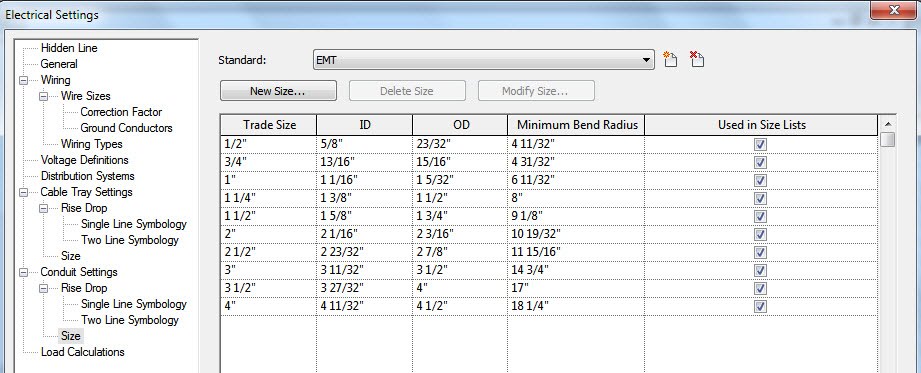
It comes out of the box with various sizes that include inside and outside diameters.  You also have control of customizing various cable tray and conduit sizes as well.


You can control the Detail Level and control the Visibility and Graphics of conduit and cable tray to control the display those objects just as you can currently control the display of piping and duct.

You can check for interferences of cable tray and conduit with other types of objects in your project model.


You can schedule cable tray and conduit using the same procedures that you used to schedule pipe and duct.  When you draw cable tray or conduit without using the no-fittings opition, it is scheduled as a single run.

Electrical Demand Factors
You can use demand factors to adjust the rating of the main electrical service for a project.  This is used since not all electrical equipment will be on all the time.


There are many demand factors that come out of the box, and you can easily create additional demand factors that are needed for the codes in your area.  The demand factor can be determined by a constant value or percentage, or by the quantity of connected objects or by load.

These demand factors are assigned to various load classifications which are then assighed to electrical connectors. 

Tagging on Placement
There is a new Tag on Placement option that automatically adds a tag for a component when it's placed in the model.  Once the tool is selected, you'll have options in the options bar of it's placement.

Companion Flanges
You can add flanges to your pipes and are separate objects than the pipe itself.  So when you make an elbow, there are actually 5 components.  Two pieces of pipe, one elbow, and two companion flanges.  You must make sure that the flanges are loaded into your project and assigned to your pipe type to be inserted automatically.  You can, however add flanges manually as well.

Oval Duct
Finally, Revit now has oval duct to add to it's current round and rectangular duct types.  Make sure to load the oval duct fittings into your project and assigned to your oval duct type.  You have the same parameteres to size oval duct as you did with round and rectagular duct.


Placing Valves and Fittings in Section or Elevation Views
This is another big one.  When you have stacked pipe, and need to put a valve on the bottom pipe, you always had to temperarily hide the upper pipe to place the fitting on the lower pipe.  And putting a valve on a vertical pipe was difficult and very time consuming. 

New Electrical Content
New content has been created for electrical components.  Most of the content is located within the Electrical Compnents folder.  The content folder is slightly different than in 2010 so be careful when creating your new 2011 library folder.
Thursday, March 18, 2010

Autodesk Publishes Framework to Help AEC Professionals Implement BIM Process

The Autodesk BIM Deployment Plan is a Free, Web-accessible Resource Offering Tools and Guidance Based on Real-World Practices for building industry professionals interested in implementing Building Information Modeling (BIM). Tools offered in this resource provide a practical framework for AEC stakeholders, and can be used by individual organizations on specific projects. The BIM Deployment Plan includes:

  • BIM support materials for owners, architects, engineers, and contractors
  • Templates to streamline multi-discipline communications
  • Recommendations for roles and responsibilities
  • Best business process examples
  • Software suggestions for an effective BIM environment
DOWNLOAD the BIM Deployment Plan Here

SAN RAFAEL, Calif - Autodesk, Inc has announced the availability of its Autodesk BIM (Building Information Modeling) Deployment Plan: A Practical Framework for Implementing BIM, a new web-accessible resource for building industry professionals. Aimed at all AEC stake-holders, including owners, architects, engineers and contractors, the free guide includes support materials and a framework based on real-world applications of BIM. Tools offered include templates to help manage multi-discipline communications within a BIM project, as well as suggestions for the roles and responsibilities of each party in a BIM process-based project, best business process examples and suggested software to support an effective BIM environment.


“The BIM Deployment Plan is helping us develop a BIM implementation process best suited for the technology needs of the project and tailored to the abilities of the players involved. It is also helpful in defining clear roles and responsibilities for the execution of workflows on our jobs.”


As the building industry continues to evolve, technologies such as visualization, simulation and analysis are fundamentally changing how projects get delivered. Now more than ever, collaboration and transparency are essential and effective for anticipating and reducing problems related to cost overruns, schedule, scope and quality. Autodesk has been at the forefront of BIM technology adoption including the creation of a portfolio of software products that facilitate a BIM solution.


“New technology is creating enormous opportunities for the building industry to improve processes and outcomes, and many organizations still need guidance on how to share information as well as streamline project communications,” said Phil Bernstein, FAIA, Autodesk vice president of building industry strategy & relations. “The Autodesk BIM Deployment Plan was designed to help companies navigate the entire process via one collaborative framework and subsequently deliver projects faster, more economically and with reduced environmental impact.”


“As strong advocates of BIM, we can develop building design strategies that are extremely well integrated and coordinated, substantially increasing our efficiency and lessening the building time – all of which allow us more time to create inspiring designs for our clients,” said Dick Thomas, vice president at SHP and executive director of 2enCompass. “Now taking this a step farther, The Autodesk BIM Deployment Plan has helped us further advance BIM project implementation by better documenting stakeholder roles and responsibilities and most importantly, helping us deliver the right information from the project model to the right people at the right time to drive our project forward.”


“Communication and collaboration amongst strategic team players is vital to the success of our projects,” said Mark Konchar vice president at Balfour Beatty Construction, Washington division. “The BIM Deployment Plan is helping us develop a BIM implementation process best suited for the technology needs of the project and tailored to the abilities of the players involved. It is also helpful in defining clear roles and responsibilities for the execution of workflows on our jobs.”

Thursday, February 04, 2010

EUA Launches Design Application Consulting (BIM) Services

EUA Launches Design Application Consulting (BIM) Services


Eppstein Uhen Architects (EUA) has just launched an extension of the firm; Consulting: Design Applications

http://www.eua.com/consulting/da/

Check out their recent marketing blast!

Friday, January 29, 2010

New Version of Trimble MEP Field Software Enables Faster, Easier and More Accurate Layout of Conduit, Pipe, Duct and Cable Trays


Trimble MEP 2.0 Field Software Introduces Significant New Features to Benefit Mechanical, Electrical, and Plumbing Contractors Working in Building Construction Applications


ORLANDO, Fla. -- Trimble introduced today a new version of Trimble® MEP Field Software for Mechanical, Electrical and Plumbing (MEP) contractors. Trimble MEP 2.0 is the world's first layout solution designed specifically to allow contractors to take digital CAD design file or 3D Building Information Model (BIM) into the field to simplify the layout of conduit, pipe, duct and cable trays. The new version of Trimble MEP Field software can increase the contractor's productivity by reducing rework by facilitating faster, easier and more accurate layout.

The announcement was made today at the AHR Expo 2010, the world's largest show targeting air conditioning, heating and refrigeration contractors.

The Trimble MEP 2.0 field software introduces new, industry-unique functionality to further assist mechanical, electrical and plumbing contractors in bringing rich digital design data directly from the office to the job site. Version 2.0 affirms Trimble's commitment to creating a seamless and more efficient solution for customers. Significant new features in Trimble MEP 2.0 include:

-- The ability for users to create points directly from a DXF file into Trimble MEP running on the Trimble Nomad® Controller. Previously, points had to be created on a PC or via other methods. This critical new function enables mechanical, electrical and plumbing contractors to respond to situations on the job as they arise without having to return to the office, which can provide significant time savings and increased efficiency.
-- The Direct Reflex (DR) Layout feature makes locating points on a deck or overhead fast and efficient because users do not need to know elevation in order to achieve an accurate location--Trimble MEP determines the elevation automatically and turns the total station to the correct position. Enhanced DR Layout in version 2.0 extends this capability to walls: regardless of the orientation or design of a wall, Trimble MEP 2.0 will calculate the correct location for piping, duct and other wall penetrations. By eliminating the need for manual calculations and multiple instrument setups, Trimble MEP 2.0 can deliver greater efficiency. In addition, the DR range of the total stations has been significantly increased, allowing contractors to reach further on the jobsite.

These and additional new features in Trimble MEP 2.0 Field Software are designed to meet the needs of mechanical, electrical and plumbing contractors, to deliver streamlined data flow from field to office.

Trimble MEP Field Software version 2.0 is available now through select dealers in Trimble's North American Building Construction distribution network.

About Trimble's Building Construction Business

Trimble's Building Construction Division is a leading innovator of productivity solutions for the building construction contractor. Trimble's solutions target site prep, general, concrete, mechanical, electrical and plumbing contractors on large and small commercial, industrial and residential jobsites. Trimble is focused on delivering solutions that tightly link office based process and information with the field crew--including taking Building Information Models (BIM) and other design data to the field for highly accurate positioning and layout of foundations and mechanical, electrical and plumbing systems. Trimble solutions provide a high-level of process and workflow integration from the design phase through to the finished project--delivering significant improvements in productivity throughout the building construction lifecycle.

About Trimble

Trimble applies technology to make field and mobile workers in businesses and government significantly more productive. Solutions are focused on applications requiring position or location--including surveying, construction, agriculture, fleet and asset management, public safety and mapping. In addition to utilizing positioning technologies, such as GPS, lasers and optics, Trimble solutions may include software content specific to the needs of the user. Wireless technologies are utilized to deliver the solution to the user and to ensure a tight coupling of the field and the back office. Founded in 1978, Trimble is headquartered in Sunnyvale, Calif.

For more information Trimble's Web site at www.trimble.com.

CONTACT: Willa McManmon, Investors, +1-408-481-7838, willa_mcmanmon@trimble.com, or Lea Ann McNabb, Media, +1-408-481-7808, leaann_mcnabb@trimble.com; both of Trimble

Wednesday, December 16, 2009

Don't Go Half Way Using Revit MEP - Creating Systems is a Must


I just got done verifying an process that I've heard mixed issues that result if your workflow process is not correct when using Revit MEP. And it's great news in my opinion.

When you place plumbing fixtures in your Revit Model, it is placed in the Default System.


You can connect multiple plumbing fixtures to each other with pipe, and get all the wonderful flow information - all without adding those fixtures to a specific system that you create. If you select the pipe and look at it's Instant Properties, you can not only see the flow going through those pipes, but you can see that it has a "System TYPE" of Domestic Cold Water and a "System NAME" of Default Domestic Cold Water. Make sure not to confuse the two.


The default View Filter displays System Types of Domestic Cold Water in a blue color. So everything looks good, but there is a limitation of how many plumbing fixtures you can connect to each other that are put on the Default System Name. And that limitation is 50 fixtures.


Below is a thread from Jason Martin at Autodesk explaining the history of this Warning further:


One of the things that is most expensive in the “calculation process” is maintaining the “pressure losses” in sections of a duct or pipe system. To do yhis we divide any connected system into sections at any junction or size change in the system (there are additional reasons for a section to be created, like a resistance change, and I’m sure a few others). For each of the sections we track things like pressure loss, static pressure etc. Maintaining these types of calculations for relatively small sets of elements is relatively inexpensive compared to the time it takes to do things like actually move the things. In systems with thousands of elements, however, these calculations became exponentially more expensive as the element counts increase. We decided at that point that when there are more than a set number of “system assignable-1” elements assigned to a system that we would turn off these types of calculations. After quite a few rounds of testing (as well as some arguing) we decided that a “tolerable” number of elements to turn off these “complex” calculations at was 50. So, now, as soon as the number of elements in a system goes above 50 you’ll get an error message that says something like:

“The default system "Default Supply Air" is now over 50 elements. To improve performance, Revit is no longer calculating the critical path pressure drop and the more complex duct sizing has been disabled. If you want to use these features, you must define logical systems in the model instead of using the default system.”

If you receive this error message it doesn’t have anything to do with things not updating in elevations / sections, and it doesn’t make the application automatically disconnect things. In versions prior to 2009 WU3 (or whichever one it was) it was very true that creating systems improved performance “massively”. Since the introduction of the “50 element” rule, it isn’t as significant as it once was.

For other “performance” things, it really, really, really depends. In 2010 a significant portion of effort was spent on improving the performance of what we referred to as “model manipulation”. This includes things like dragging, connecting, moving, sizing (either with sizing tools or just changing the size), and deleting items like pipe, duct and fittings. As a few others have mentioned here, “model manipulation” in 2010 is significantly faster than it was in previous releases.

If you are moving a connected duct / pipe / fitting - our internal testing has shown that it is actually “slightly” faster to not have systems defined than it is to have systems defined. If you are making new connections between things - our internal testing has shown that it is actually “slightly” faster to have systems defined than it is to not have them defined. If you are changing the flow of elements in the system (like air terminals) - it is “slightly” faster to have systems defined than it is to not have them defined. If you are creating systems - it is significantly faster to create them before things are connected with ducts and pipes.

System assignable elements are things like air terminals, mechanical equipment etc. Things that when you select them you see a create system button (or edit system button) but don’t include things like ducts, fittings, pipes, etc.


Once you create your user defined system, you can move your plumbing fixtures to that system and they are moved out of the default system.


Your piping properties will now take on that System Name as well.


With this, you can create piping annotation tags that can be smart and extract the pipe size and the pipe system. Once I connect a tag to that pipe, it will read, 1" CW. And the tag will automatically update and change if I ever make a change to my design. I don't need to worry about the annotation being incorrect. I like to use these piping annotation tags in my "plot" views for my construction documents.
I also use another piping annotation tag that displays fixture units and flow at certain points of my system in my "modeling" views. That way I can make sure my system is connected, and I'm engineering it properly.
I asked Martin Schmid from Autodesk if you could theoretically put every cold water plumbing fixture in a job in one user defined cold water system, and not have a large performance hit. He says there is a trade-off - and that, even though you can put all of your mechanical fixtures in a user defined system name, the more connections and fittings you have, the longer the calculation time for edits done to the system or its layout. But it's not as bad as when you are using the default system name. Martin tells me that 2010 is faster than 2009 in this process. And you won't notice hardly in smaller jobs.
Another workflow process is that you could break up your systems into CW1 and CW2 and CW3, etc... one for each riser in a particular area. But who wants to have a system name CW4? So you will need to decide if you want to break up your systems, or depending on your project size, computer speed, OS and patience, put all of your fixtures in one user defined system.

Which brings me to the name of the article, Don't Go Half Way. I hear a lot of firms that just want to model certain parts of the building in Revit, and do 2D for the other in AutoCAD. Or they want to just create a 3D model, and not use the flow calculation tools that Revit has. But there are a lot of things going on in the program that if you're not aware of, you run into these limitations such at connecting 50 elements to a default system and you end up creating more headaches than you thought you were going to avoid by taking shortcuts. So go the extra step and create the systems and use them to your advantage. You can save so much more time accepting the full Revit process the way it is supposed to be used, than trying to come up with workarounds and unproven processes of how Revit is not supposed to be used.

Wednesday, October 07, 2009

Forum Addresses BIM Standards in Texas

http://www.constructech.com/news/articles/article.aspx?article_id=7975&SECTION=1

October 06, 2009
Julian Kang, associate professor and graduate program coordinator, Texas A&M University, www.tamu.edu, College Station, Texas, had a clear reason for wanting to host a BIM (building information modeling) forum in Houston—to talk about everything the industry can do with BIM, specifically in the construction phase of a project.

Three years ago, Kang did a BIM investigation as part of research efforts for the AGC (Associated General Contractors of America), www.agc.org, Arlington, Va., and found general contractors in the Houston area did not clearly understand how much they can accomplish using BIM.

When he met George Pontikes, chairman of the board, AGC Houston Chapter, and president and CEO, Satterfield & Pontikes Construction, www.satpon.com, Houston, Texas, Kang brought up the idea of offering a BIM forum in Houston, and coincidentally Pontikes had a similar idea. With a program committee, Kang and Pontikes began making decisions and promoting the first BIM forum in Houston.

The BIM Forum Houston 2009, http://bim.tamu.edu/, took place Sept. 17, 2009 and had roughly 90 people in attendance. The event focused on BIM issues and trends in the construction phase of a project. With two keynotes, six breakout sessions, two interactive presentations, and a panel discussion, the event was full of best practice stories and emerging technology.

While one keynote—reported by the AGC—focused on the current economic situation, it was the other keynote—from the Texas Facilities Commission—that garnered a lot of attention, according to Kang.

Recently, the FDC (Facilities Design and Construction Division) within the TFC (Texas Facilities Commission), www.tfc.state.tx.us, Austin, Texas, adopted BIM for state design and construction projects, in an effort to standardize the use of BIM in future projects.

Texas is not the first state to develop a set of BIM standards and guidelines for all partners involved in a state project. Earlier this summer, the Division of State Facilities in Wisconsin prepared BIM guidelines and standards, which were implemented on July 1.

Chris Tisdel, director of building information modeling, TFC, presented the keynote at the BIM Forum Houston.

“He is one of the courageous guys in the construction industry who is preaching the benefits of BIM in construction as an owner,” says Kang. “So, if you want to get a project from the State of Texas, you have got to use BIM.”

Tisdel even talked of specific applications that should be used. According to Kang, Tisdel is asking companies working with the State of Texas to use Revit Architecture from Autodesk, www.autodesk.com, San Rafael, Calif. At the forum, contractors learned about the state’s BIM template for project team members and learned how to incorporate BIM into the lifecycle of projects.

Kang says Tisdel presented many benefits of the standards and guidelines including interoperability, reducing redundant work, and sharing information with others on the team.
“He is basically talking from the owners’ perspective. He wishes to have some central repository where he can get all kinds of 3D models—in this case Revit models—of all buildings that was awarded by the State of Texas,” says Kang.

Another hot topic at the forum was the use of COBIE (Construction Operations Building Information Exchange) to continue to use BIM even after the construction is over.
According to the National Institute of Building Sciences’ WBDG (Whole Building Design Guide), www.wbdg.org, Washington, D.C., COBIE simplifies how work is captured and exchanged. The approach is to enter the data as it is created during design, construction, and commissioning. While it is intended to work within the BIM process, the data can also be exchanged using spreadsheets. Many attendees focused on COBIE and how to use the building information model for facilities management.

Kang says overall event and attendee response exceeded his expectations and he is planning to expand the program next year—beyond just Houston.

“I guess what I would like to say is next year’s forum is … going to be a forum for everybody in Texas,” says Kang. “It is a forum for people that want to see more BIM coming to the construction industry.”