Revit MEP

Revit MEP
Showing posts with label Sharing. Show all posts

Monday, November 21, 2011

Using Revit as a Team. Use Same Builds.

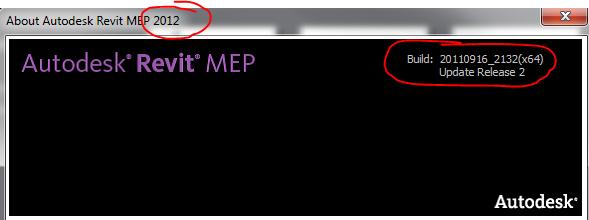
When using Revit on a project, make sure everyone on the team is using not only the same version, (2011, 2012, etc), but the same build number as well.  The build number can be found by clicking on the question mark pull down in the upper right corner, and click the About button….

From there, you’ll see the splash screen of the version, and the build.  The first 4 numbers in the year the build was released, (2010) The next 2 are the month of the release, (09-September), the next 2 are the day of the release, (03-third).  The last four are the actual build number 2115, and the service pack number is new to the newer versions.  Might not be shown for earlier versions.


I’ve seen fatal errors in Revit when teams are using the same version, but different build numbers, and users are syncing their builds local file to the central file, and the central file is receiving updates from multiple builds, when there have been some changes to the software code, and there is a discrepancy  between two items, one new version, one old version, and Revit doesn’t know what to do. 

In order to make sure everyone is using the same build, everyone should be using the latest build.  For 2011, its build 20100903_2115 Web Update 2 Service Pack.  For 2012, it’s build 20110916_2132 Update Release 2.

Friday, July 01, 2011

Easily share your BIM with eTransmit for Revit

Here is a snippit from Autodesk Lab's website...

With eTransmit for Revit, you can:

  • Copy and detach a Revit model and associated files to a single folder for internet transmission. This removes the typical error messages when you copy central files using the operating system.
  • Locate dependent files automatically and include them in the transmittal folder, reducing the possibility of error. All dependent files are automatically converted to use relative paths to ensure that the dependent files can be located by the model.
  • Choose to include related dependent files such as linked Revit models, CAD files, DWF markups, decal images, and external keynote files. You can transmit any Revit (.rvt) model that has been upgraded to Revit Release 2012.
  • Transmit models that are using file-based worksharing or server-based worksharing. eTransmit for Revit will also work with non-workshared Revit models.

Common uses for eTransmit

  • Internal archiving
  • Sending deliverables to clients
  • Model exchange between consultants/partners
  • Model cleanup
  • Sharing models between disciplines

Availability


The technology preview will operate until December 31, 2011.

Tuesday, May 11, 2010

Family Jewels Blog - Creating Quality BIM Content for Revit MEP


A new Autodesk Website dedicated to BIM Content.  Familiy Jewels - Creating Quality BIM Content

I've talked to a lot of users who have dabbled in Revit MEP, and have quit saying they will try again when Revit gets more family content.  I don't remember AutoCAD coming with blocks back in the day.  We ended up creating all of our AutoCAD blocks to match our company standard.  It was a 25 year process.  Every company seems to have their own standard which varies from the National CAD Standard, or even the National BIM Standard.  If people end up waiting for someone to create all the content needed for for Revit MEP, you'll be waiting forever and never use the program.  The idea of waiting for someone else to make my content didn’t seem to be a proactive approach.  It's going to be another 25 year process of creating BIM content.  A job that will never be complete.  So getting started as soon as possible seems to be the best approach before falling behind.

People who have been using Revit Architecture or Revit MEP for a long period of time have either modeled from scratch or heavily customized nearly every family that is used in their projects. This means every piece of mechanical equipment, valve, air terminal, electrical device, lighting fixture, plumbing fixture, annotative tag, schedule, parameter and view reference.  These users have done this not because they want to work with Revit, but because they want Revit to work for them.  So how do you get Revit MEP work for you? One way is to seach for content directly from the manufacturer like Greenheck Fan, or by using Autodesk's Seek website.  But the other way is by creating your own families. The families you create can be as simple as a box, yet still provide information about a mechanical system and help with coordination of your BIM model.

This blog will feature some tips and tricks of creating quality content, some free content, some links to manufacturer Revit content, and all sorts of information related directly to BIM content.

Monday, April 19, 2010

Upgrading Your Custom Revit MEP Library from 2010 to 2011 Format

Because some architects might be early adopters to 2011, and some architects might wait until the first service pack is released before upgrading their projects to 2011, engineers will find themselves working with architects using different versions of Revit.  Because Revit is not backwards compatible, engineers will have to run multiple versions of Revit MEP to match each architect that they are working with.

The history of this issue is that everybody working on a Revit project must be using the same version of Revit.  Architecture, Structural and MEP must all be the same.  If one team is using an newer version, the other teams who are using an older format won't be able to read the newer format.  The new format has new tools, new objects, and new settings that older versions don't understand, and weren't written to automatically know what new objects would be coming out in the future.  Now if one team is using an older version, the other teams will be able to open an older version, and upgrade that project to the newest version, but the team using the older version won't be able to open the new format version of the other team members.

So now that we understand why we have to install multiple versions of Revit MEP on our workstations, we will also need to have multiple versions of Revit Libraries on our server.  The 2011 directory, obviously will have the newest contect, and that content can only be used for 2011 projects.  That content cannot be used for 2010 projects.  So any 2010 project must use content from a 2010 content directory.  Any custom 2010 content can be copied, and the copies can then be upgraded and added to the 2011 directory.


To Use the Content Batch Upgrade Utility:


  1. Copy Upgrade_RFA.txt and Upgrade_RFA.bat into the root directory of the library that you want to upgrade.
  2. Run the Upgrade_RFA.bat to create the file list to upgrade, famlist_rfa.txt.
  3. To launch the utility, from the library directory, drag Upgrade_RFA.txt onto the Revit icon on your desktop.
  4. After upgrading, delete all backup files from the library.


Make sure all of your .rfa files are not read-only and delete all backup files from the library. If a particular family fails to upgrade properly, the utility will stop.  If this occurs, open famlist_rfa.txt in Microsoft Notepad, and remove all previously upgraded families and the failed family from the list. Save famlist_rfa.txt, and re-run the utility.

Tuesday, November 10, 2009

You don't need Navisworks to create Navisworks NWC files from your AutoCAD or Revit models.

The distributable NWC file exporter program enables project teams using Autodesk Naviswork software to generate whole-project models for simulation and analysis. Project team members can generate the optimized NWC file directly from their design applications. This capability is provided without necessitating a licensed seat of Autodesk Navisworks 2010 software on the same machine. The NWC exporter works with a range of products, including the AutoCAD-based and Revit-based Autodesk products, as well as Autodesk 3ds Max, Bentley MicroStation, and Graphisoft ArchiCAD software. The NWC file format supports transfer of both object geometry and associated metadata from the design applications into Autodesk Navisworks 2010 software.

Click here to download the exporter program


Using NWC File Exporter Pack


The NWC file exporter pack enables project team members generate the optimized NWC files directly from their design applications.

The NWC file enables transfer of both object geometry and associated metadata (such as object properties and materials) from the design applications into Autodesk Navisworks 2010.
The NWC exporter pack works with a range of products including AutoCAD-based applications, Revit-based applications, 3DS MAX and Viz, Microstation, and ArchiCAD.
You can distribute link to a download page for the NWC exporter pack to any project team member.
To export an NWC file from an AutoCAD-based application
  1. To export an NWC file, type NWCOUT at the command line in the design application.
  2. Press Return.
  3. In the Save As dialog box, enter the name for the file, and browse to the desired storage location.
  4. Click OK to export the file, or Cancel to return to the application without exporting it.

To export an NWC file from a Revit-based application

  1. In the design application, click Tools ➤ External Tools ➤ Navisworks 2010.
    NOTE This option is not available in Demo/Viewer mode. If you are not in demo mode, but do not have access to the Navisworks menu, check if editing view is set to normal, and the modify tool is selected (Edit ➤ Modify).
  2. In the Export Scene As dialog box, enter the name for the file, and browse to the desired storage location.
  3. Click Save to export the file, or Cancel to return to the application without exporting it.

To export an NWC file from 3DS MAX or Viz

  1. Click File ➤ Export.
  2. In the Select File to Export dialog box, select Navisworks 7 Cache (*.NWC) in the Save as Type field.
  3. Enter the name for the file, and browse to the desired storage location.
  4. Click Save to export the file, or Cancel to return to the application without exporting it.

Monday, January 12, 2009

Revit Interoperability with AutoCAD - By Autodesk

Autodesk® Revit® is a complete architectural design and documentation solution, supporting all phases of design and all architectural drawings and schedules required for a building project. From massing and conceptual studies through the most detailed construction drawings and schedules, Autodesk Revit has tools for delivering productivity, coordination, and quality to the building team.

Autodesk Revit can be used alone or in conjunction with AutoCAD®. This guide will help those who are familiar with AutoCAD to understand how Autodesk Revit works, introducing some of the main features and concepts of Autodesk Revit and comparing them with similar features of AutoCAD.

This guide also demonstrates how you can use Autodesk Revit with AutoCAD to manage a project and its deliverables. You'll learn how to integrate existing AutoCAD projects with Autodesk Revit to produce construction documents. The process relies on the export compatibility of Autodesk Revit and the external referencing capabilities of AutoCAD.

Autodesk Revit provides DWG compatibility using the Autodesk ObjectDBX™ toolkit, and works with AutoCAD to ensure clear communication of design data among project teams.

Revit Interoperability With AutoCAD Whitepaper - By Autodesk

Sunday, November 30, 2008

WAN Access at LAN Speeds for Revit Worksharing

Whether you share Revit files across town or across the world, waiting has become a part of your day. Slow file access means lower productivity. Redundant files lead to accidental save-overs and lost work. Between the coffee breaks and costly re-work, the hidden costs are unimaginable...and we haven't even begun to talk about security or back-up.

Overcoming the challenges of multi-site collaboration
GlobalSCAPE WAFS allows users from all locations to access and share files over a WAN at LAN speeds. File replication ensures the same files exist at all locations while real-time file locking keeps users from overwriting files in use. As files are modified, changes are mirrored instantly using revolutionary byte-level differencing.
  • Instant access to remote files with minimal bandwidth consumption
  • File coherence with real-time file locking, file release, and synchronization
  • Continuous back-up at the central server
  • Instant access to newly created files anywhere on the WAN
  • Offline availability with automatic sync upon re-connection
  • Secure encryption keeps your sensitive data safe
  • Completely transparent to end-users, no training required
  • Easy installation, browser-based management, and firewall friendly(tunnel through HTTP/S)

Get started todayGlobalSCAPE WAFS can be set up and operational in a matter of hours. They want you to try it free for 30-days to see how well it can work for you. If you have any questions at all, please call them at 1-800-474-0116 (U.S.) or 978 474-9116 (international).

Monday, January 21, 2008

Worksharing Monitor for Revit MEP 2008

If your Revit MEP is on subscription, you can download the new Revit 2008 Worksharing Monitor Extension from your subscription website.

The Worksharing Monitor facilitates the use of Revit software in a worksharing environment, in which multiple people work on one project. For workshared projects, the Worksharing Monitor answers questions like the following:
  • Who is currently working on this project?
  • Is my local copy of the project up to date?
  • When will my Save to Central operation finish?
  • Has my request to borrow elements been granted?
  • Are any issues interfering with my work on a Revit project?

NOTE: The Worksharing Monitor is not useful for standalone Revit projects, which do not use worksharing to divide the work for a project among several people.

To install and run Worksharing Monitor for Revit 2008, you need to have at least one product from the Revit 2008 product family installed on your computer. You must have a 2008 version installed, with SP2 or SP3 (also known as WU or web updates). Available products include:

• Revit® Architecture 2008, SP2 or SP3
• Revit® Structure 2008, SP2 or SP3
• Revit® MEP 2008, SP2 or SP3

Friday, November 30, 2007

Interoperability of software in the construction industry

This is something I read that I found really interesting. It’s a long article, but I summed it up below. This is something that I see with our customers right now, and how they are re-drawing projects because of the inability or reluctance to share data.

The link to read the full article is here.

-Scott Brisk

Interoperability is the ability to manage and communicate electric product and project data among collaborating firms such as architects, engineers, contractors, owners and building product manufactures. Also the ability to implement and manage collaborative relationships among members of cross-disciplinary build teams that enables integrated project execution. If all members of a build team can freely exchange data across different applications and platforms, every member of the team can better integrate the project delivery.

Interoperability issues are gaining attention with the increased use of BIM. In order to optimize the use of BIM, it is critical that the BIM data be shared between build team members. As a result, interoperability of technology is an important factor. Re-entering data from a BIM into another application or platform used by the build team creates wasteful and costly duplication.

About 3% of project costs are related to software non-interoperability. As construction values have risen to record high levels, productivity within the industry has come under scrutiny. The industry generally perceives lack of interoperability as an impediment to improving productivity.

Conventional delivery methods have often promoted a divide between build team members, as work is handed off from one member to the next throughout the process. As team members work closely together during the design phases, they have a greater ability to impact costs before the project progresses into the construction phases. In order to reap the full benefits of BIM’s ability to promote integrated project delivery, build team members will increasingly need to have interoperable solutions.

While industry groups are often working toward the same interoperability goals, these groups are sometimes following different paths to a solution. A majority of the industry lists software incompatibility issues as the primary factor impacting build team members ability to share information across software.

As a significant portion of the industry adopts BIM and explores its uses, concern over interoperability isuues will grow. If a limited number of firms use BIM, the need to seamlessly share data between BIM and other applications being used on the team remains in important issue.

Interoperability within the built environment will be achieved through a combination of solutions spurred by people and technology. As build team members create and reference these data-rich models, the advantages of sharing data between disciplines become clearer. With adoption of BIM heading toward a tipping point in 2008, more users of this technology may seek solutions that facilitate data exchange. Competitive pressure could drive this dynamic. Build team members believe their competitors may be adopting BIM more quickly than they are. To avoid the risk of falling behind, more firms will adopt BIM and possibly push its limits to create their own competitive advantages.

While use of BIM is on the rise, looming legal issues threaten its use within an interoperable environment. As a new technology, there are limited legal and contractual frameworks to clearly define liability. BIM offers a dynamic exchange of data, yet within the legal community contracts are often established using language based on 2D drawings. In some contract language, if there are discrepancies between electronic files and printed files, the printed files govern. Within a model-sharing environment, data need to flow from one party to the next electronically with all parties trusting their accuracy. Without a framework to allay concerns about indemnity in such an environment, build team members will remain hesitant to collaborate using BIM. (Patrick J. O”Connor, Jr., “Productivity and Innovation in the Construction Industry; The Case for Building Information Modeling.” Pp. 35-41)

Conclusions

  • BIM Experience will breed awareness and drive demand.
  • Owners increasingly will take leadership roles
  • Users will lead the way to define tangible benefits of interoperability
  • Universal interoperability between all applications will not be the near-term solution
  • Major software companies will respond to market demand for interoperable solutions, but at their pace
  • This environment will spawn unprecedented entrepreneurial opportunity. Companies who can think of cost justification and user requirements, and these technology firms who do not have the baggage of legacy data structures and installed foundation to support targeted solutions that come out of the box, will be ready to enable existing tools to play nice with others.

Friday, July 20, 2007

Sharing the Work in Revit

Worksharing Vocabulary

In order to understand worksharing, let's first get acquainted with its basic terminology.

Central File: A master project database repository containing all building model data subdivided into logical areas created and saved in a shared location on a network so that more than one person can work on that project.

Local File: A copy of the Central file saved on a project team member's workstation or network location. This local file acts as an interfacing mechanism for working on the Central file.

Workset: A collection of elements that can be edited by only one team member at a time.

Element Borrowing: A process that allows a team member to edit an element with or without checking out a Workset. Element borrowing happens automatically when a team member selects an element for modification contingent on the fact that the object is not owned or borrowed by another team member. Objects owned by other team members will not be open for borrowing.

Editing Requests: When elements are modified by another team member, that person retains editing ownership of those elements. Therefore, when another team member wants to edit an owned element, they must submit a request to the owner for rights to edit it.

How Worksharing Works

The basic process of worksharing is outlined in these steps.

1. A single user creates a project and begins creating the initial geometry and information. The building information model is developed to a certain point.

2. Then, additional users are required and worksharing is enabled in the project.

3. Revit automatically assigns the various elements of the project to logical Worksets.

4. The file is then saved as the Central file to the network appending the project file name with "-central" for clarification.

5. Team members will then save the Central file as a Local file to their local hard drive or on the network and append the file name with an identifier such as "-bknittle" for clarification.

6. Additional Worksets can be created in a user's Local file to group the building elements into logical groupings.

7. Users make modifications by using Element Borrowing or checking out a Workset through their Local file. Element borrowing in a Workset checked out by another team member can be made through Editing Requests.

8. Each team member makes regular Local file saves and also saves to the Central file throughout the day.

9. Each team member makes regular reloads from the Central file to synchronize their own Local file.

10. Users with checked out Worksets can relinquish ownership at any time.


This workflow is described in more detail in the rest of the tutorial.

Beginning the process

1. Click on the Workset button on the Workset Toolbar. (It can also be accessed from the File pull-down menu.)

NOTE: There is no going back once Worksharing is enabled.

2. The Worksharing dialog will appear. The dialog prompts the user for a name to the shared levels, grids, and generic workset that will contain default model objects. These default names are a good start, therefore they need not be renamed unless necessary. Select OK when ready.

3. The Worksets window dialog will appear, allowing the user to view existing Worksets or create additional Worksets. The elements can be viewed all at once or filtered in the Show category. These Worksets are the User-Created, Families, Project Standards, and the Views Worksets. These different types are briefly described below.


Default Workset:

  • Views: For each view, a dedicated view workset is created automatically containing the view's defining information and any view-specific elements such as annotation.

  • Families: A family workset is created for each family defined in the project.

  • Project Standards: Each project setting is placed on its own workset. These standards include Materials, Line Styles, etc.

User-Created Workset:

  • Shared Levels and Grids: At the onset of enabling worksharing, this workset is automatically created for existing grid and level objects.

  • Workset 1: Everything that is left over is placed into this workset.

Create the Central File

1. Doing a File > Save As will create the Central File. Best practices recommend that the Central File be given a name followed by "-central" then saved to a shared network location. This will allow the additional team members to copy it locally or on the network. Click the Options button.

2. The check box for Make this the Central location after save will be checked after worksharing is invoked.

3. In the File menu, select Relinquish all Mine. This will relinquish all the Worksets that were created so that they can then be accessed by the rest of the team.


Create the Local Files

Each team member will open the Central File and perform a File > Save As. Best practices recommend that the Local File be given the same project name followed by "-[Login Name]" and save it to their local hard drive. A virtual link is created by Revit that connects the two files.

NOTE: Some project leaders actually create the Local Files for the team and save the Local Files on the network for back-ups. Users then open their specific Local Files. Verify network speed. The Central File should not be opened beyond this point.

Benefits of Worksets:

  • Large projects can be broken down into manageable areas.
  • Each team member can be assigned a Workset giving them sole responsibility of that portion of the work.
  • When opening a project, the user can specify which Workset to open.
  • Disciplines can work independently from one another by creating discipline specific Worksets within the same project (typical in an AE firm).
  • Visibility of a Workset can be controlled per view.

Limitations of Worksets:

  • Regular saves to Central and reloads from Central need to be coordinated manually to keep the team and Central file in sync.
  • Editing Requests must be acknowledged, both verbally and electronically.
  • Anybody can create a Workset.
  • Have to relying on team members to relinquish all Worksets at the end of the day to ensure the project still moves forward, even those going on vacation or falling ill.

Considerations when creating Worksets:

  • The project size.
  • The size of the project team.
  • The team member's role (modeling or drafting, Architectural or MEP, etc.).
  • Carefully planning with the team how the building model will be assigned and broken down into simple and logical Worksets.

Create Worksets

1. Click the Workset button on the Workset Toolbar. This will launch the Workset dialog window.

2. In the Worksets dialog window select the New button. This will launch the New Workset dialog window.

3. Give the new Workset a name that describes what elements will be assigned to it. This will prevent any confusion. Check the Visible by default in all views box. This will give the Workset the most flexibility.

NOTE: Creating a Workset will automatically make the user who created it the owner.

4. Open a view to work in. Plan or 3D views work really well for moving objects to a Workset. Select common objects (walls, doors, windows, etc.) and on the Options Bar select Properties, or Right Mouse Click to select Properties. In the Element Properties dialog window under Instance Parameters, find Identity Data. Find the parameter Workset. Activate the cell's flyout and select the new Workset.

5. Continue this procedure to create and assign elements to additional Worksets.

Saving Local, Saving to Central, and Reload Latest

It is very important to have a well regimented plan when it comes to worksharing. The times for doing project saves and updates during the day should carefully be selected so as to not disrupt the project workflow, for example, during lunch break or prior to leaving for the night.

1. Saving the Local File can be accomplished by either clicking the Save button on the Standard Toolbar, going to File > Save, or the command alias Ctrl+S. All three options execute the save command.

2. Saving to Central can be accomplished one of two ways. The first method involves the Save to Central button on the Standard Toolbar. This command updates the Central File with recent changes. However, it does not return the user-created Workset. The preferred method is using File > Save to Central. This will provide the user many more options when executing the command. The File Save As dialog window will be launched.


3. In the File Save As dialog window, the user can relinquish any owned Workset, as well as save their own Local File. A Comment field is provided for specifics.

4. Synchronizing the project can also be accomplished in many ways. File > Reload Latest is one method of updating the Local File. The command alias RL is also available when synchronizing.

Working in a Shared Environment

Modifying elements in a Workset checked out by you is one story. However, if that element happens to be of a Workset which is not owned or owned by another user, modification will require element borrowing.

Element Borrowing occurs when a modification is made to an element(s) that is not owned by you. A small icon resembling a puzzle piece with a line through it is displayed to signify that it is locked.

Two things will happen at this point. The user will click the puzzle piece and:

1. The user will click the icon and the element(s) will be free for editing. This occurs when an element(s) is part of a Workset that is not checked out or owned.

2. The user will click the icon and a warning will appear flagging the object as being owned by another user. You will then be given the choice to place an Editing Request.

Editing Requests are delivered via Revit from the requesting user to the receiving user.

1. The requester will click the Place Request button to alert the owner electronically and then call, IM (instant messaged), or email the other user. The requester can wait a minute and Check Now to see if his request was granted or Continue to work while the request is answered.

2. The owner of the element will receive a call, IM, or email and click the Editing Requests button on the Workset Toolbar.

3. This will launch the Editing Requests dialog window displaying all pending requests from other team member(s). The owner will either click the Show button to see the element(s), click the Grant button to allow the requester to borrow the element, or click the Deny/Retract button to disallow the borrowing of the element(s).

4. If the requester waited and clicked Check Now, Revit relays the granted request from the owner.

5. If the requester clicked Continue, the owner either called, IM'd, or emailed the response. But if that did not occur, the requester could simply click the Workset button on the Workset Toolbar and view the Borrowers column to see if the request has been granted.

NOTE: Editing Requests still require a measure of verbal communication outside of Revit to acknowledge or confirm a request for modification. Once a request has been granted, it will no longer appear in the Editing Requests dialog windows of all parties.

Improving the Performance of Worksharing in Revit

Projects tend to take on a life of their own, sometimes often leading to increased file size which can really slow performance. Revit offers the ability of selectively open the project through its Worksets.

A user will begin the process of opening a project either through File > Open, the Open button, or the command alias Ctrl+C. In the Open dialog window under Open Workset, several options are available as to how the project is opened.

  • All opens all the Worksets of the project.
  • Editable opens all Worksets checked out by you.
  • Last Viewed opens the Worksets that were opened when the project was last closed.
  • Specify opens the Workset selected from a list in the Opening Worksets dialog window shown below.

Visibility of Worksets

A prominent benefit of Worksets is having the ability to control its visibility settings, whether it is On or Off or grayed out for clarity.

Gray Inactive Workset Graphics is an option that can be activated from different locations: clicking the Gray Inactive Workset Graphics button on the Workset Toolbar, or by check box in the Workset dialog window.

Visibility Graphics provides an additional tab called Worksets which turns the visibility of all elements in a Workset on or off. Simply access it by Right-Mouse-Clicking in the view, going to View > Visibility Graphics, or using the command aliases VV / VG. Then select the Worksets tab. Finally check the box(es) to view the Workset(s) or uncheck the box(es) to hide the Workset(s).

Additional Tips

Back-ups: When Worksharing is envoked, Revit automatically creates a back-up folder for the central and local files. The incremental back-ups are controlled by the Save As options.

New Releases or Builds: When a new release or build is rolled out, the IT manager or Project Leader needs to open the Central File and save it as the new version. Then the users can create Local Files from the new Central File and continue working.

Linked Data: External project data can be linked to Revit and assigned to a Workset for additional visibility control. Revit also creates a tab for Revit Links in the Visibility Graphics dialog window.


Detaching from the Central File: This will break the connection between the Local File and the Central File. This option is accessed by opening a Local File and checking the box for Detach from Central. Revit will explain what this process will do and request your approval before proceeding.

The Worksharing Roadmap

In conclusion, the steps described in this tutorial can be captured by the Worksharing diagram shown below.

Wednesday, February 14, 2007

Revit MEP Multi-Disciplinary Collaboration

Collaborating in an all-Revit environment will greatly improve the coordination of building components through its internal management of the project database. This tutorial provides some guidelines on how to undertake effective multi-disciplinary collaboration in Revit.

Collaboration Guidelines

Revit consists of three discipline-specific platforms: Revit Architecture, Revit Structure, and Revit MEP. Each team member must be working on the same platform version and product build to effectively collaborate. Revit is a forward compatible product. Therefore, the design team should know the current compatible platform versions.

The current compatible Revit platform versions are recommended below:

  • Building 8, Structure 1 (MEP application was not developed at this time)
  • Building 8.1, Structure 2 (MEP application was not developed at this time)
  • Building 9, Structure 3, Systems 1
  • Building 9.1, Structure 4, Systems 2
  • Architecture 2008, Structure 2008, MEP 2008

It is recommended that product build numbers should match in each product. The product build can be located in each product's Help menu by clicking on About Revit… The same build should be issued to all team members in the same firm or errors could occur when trying to Save to Central when using Worksharing.

Collaborations Tools and Methods

The linking of each other's models using Revit's Copy/Monitor feature provides immediate visual feedback on what the other members are doing. The benefits include:

  • The ability to see the each other's data in full context of the project
  • The ability to graphically control the linked data to enhance how it is viewed.
  • Support for Coordination Monitor and Interference Check.

The Coordination Monitor is the most intelligent tool for collaborating in Revit when utilized properly. The benefits include:

  • The ability to choose components of the linked model to monitor for change.
  • Multiple modes offer flexibility to Monitor and Copy/Monitor objects.
  • With Copy/Monitor, elements from the linked model can be copied into the host project automatically creating a monitored relationship.

The Interference Check provides immediate feedback on component collisions. The benefits include:

  • The ability to check interferences within a single project or linked models.
  • The ability to check "On Demand."

Project Structure

Effective collaboration can be achieved in a single model environment. However, it is recommended that the models be separated from one another to gain full advantage of the collaboration tools provided in Revit.

Workflow Relationships

Each discipline creates a relationship based on their individual workflows:

  • Architect/Structural Engineer: In this relationship, the structural engineer will leverage the architect's model using Coordination Monitor's Copy/Monitor mode to create copies of building components from the architect's model and to monitor it for change, as well as to establish a quick structural model of the project for their workflow. The architect can then use Interference Check to verify that architectural elements are not conflicting with structural components.

  • Architect/MEP Engineer: In this relationship, the MEP engineer will link the architect's model to position components in context. The Coordination Monitor is used to leverage the architect's rooms and levels. Analysis parameters are added to the room elements. However, levels are necessary to copy/monitor rooms. The architect simply links the MEP model to show system elements in context to architectural elements.

  • Structural Engineer/MEP Engineer: In this relationship, both parties benefit from interference detection to avoid collisions between structural and systems elements.

Based on these recommendations, the diagram below represents a suggested use of Revit's collaboration tools between each program/discipline.

  1. The Architect will link in the Structural model and utilize Interference Check.
  2. The Structural Engineer will link in the Architectural model and utilize Coordination Monitor.
  3. The Architect will link in the MEP model and utilize Linked Models.
  4. The MEP Engineer will link in the Architectural model and utilize Coordination Monitor.
  5. The Structural Engineer will link in the MEP model and utilize Interference Check.
  6. The MEP Engineer will link in the Structural model and utilize Interference Check.

Here are some overall guidelines on workflow procedures to keep in mind:

  1. Use the Coordination Monitor only when necessary. Overuse of the Coordination Monitor could slow the linked model's performance. Some relationships need only be set up as a monitor, not a copy/monitor.
  2. When Worksharing is invoked, be sure to follow these recommendations:
  • Coordination Monitor should be set up to Central File if both files exist on the same LAN. All updates should occur when the Local Files are not being used.
  • Open the project and Detach from the Central File when distributing the model to other consultants. The detached model should then be attached to the consultant's Central File.

Stage 1 - Leveraging Models

Architect to Structural Engineer

1. The Architect will send the architectural model to the Structural Engineer.

2. The Structural Engineer opens the delivered model and reviews its elements.

  • Levels: Do they make sense for use in the structural model? Do the bubbles vary from the company standard?
  • Grids: Do the bubbles vary from the company standard?
  • Columns: What type of columns are available? Are the columns continuous or split?
  • Walls: Are there structural walls needed in this project? What kind of walls were used?
  • Floors: What kind of floors were used?

3. The Structural Engineer starts a new project.

4. The architectural model is linked in. This is accomplished by File > Import/Link > Revit. Use the Origin to Origin positioning method if shared coordinates are not being utilized.


5. The visibility settings are changed to view the architectural model.

6. The Structural Engineer selects Tools > Copy/Monitor > Select Link and then selects the architectural model.

7. The Design Bar changes to reveal the Copy/Monitor tools.

8. The Options button is accessed to reveal the Copy/Monitor settings for Levels, Grids, Columns, Walls, and Floors.

9. The Structural Engineer monitors or copy/monitors the elements of the architectural model that are required to begin the structural model.

10. The structural model will continue being developed.

Architect to MEP Engineer

1. The Architect will send the architectural model to the MEP Engineer.

2. The MEP Engineer opens the delivered model and reviews its elements.

  • Levels: Are necessary for copy/monitor of rooms in the MEP model? Do the bubbles vary from the company standard?
  • Grids: Not really necessary.
  • Columns: Not really necessary.
  • Walls: Not really necessary.
  • Floors: Not really necessary.
  • Rooms: Are there rooms available?

3. The MEP Engineer starts a new project.

4. The architectural model is linked in. This is accomplished by File > Import/Link > Revit. Use the Origin to Origin positioning method if shared coordinates are not being utilized.

5. The visibility settings are changed to view the architectural model.

6. The MEP Engineer selects Tools > Copy/Monitor > Select Link and then selects the architectural model.

7. The Design Bar changes to reveal the Copy/Monitor tools.

8. The Options button is accessed to reveal the Copy/Monitor settings for Levels, Grids, Columns, Walls, Floors, and Rooms.

9. The MEP Engineer monitors or copy/monitors the levels first.

10. The Options tool will be accessed again to review and set the room options.

11. Several of the room's parameters can be copied from the architectural model.

12. The rooms can be copied by phase if necessary.

13. After setting these options, the rooms can be copied using the Copy Rooms tool on the Design Bar.

14. The MEP model will continue being developed.

Stage 2 - Monitoring Models

Structural Engineer to Architect

1. The Structural Engineer will send the structural model to the Architect.

2. The structural model is linked in. This is accomplished by File > Import/Link > Revit. Use the Origin to Origin positioning method if shared coordinates are not being utilized.

3. The Architect can run Interference Check at this point but might elect to monitor the levels and grids to access additional features of Coordination Monitor.

Stage 3 - Coordinating Changes

The Architect

1. If the architectural model changes, this will initiate a warning dialog from Revit.

2. The changes can be viewed by accessing Tools > Coordination Review > Select Link.

3. Coordination Review will open revealing the alert. As the host, the Architect can post a comment regarding this coordination issue.

4. The architectural model is saved and sent to the consulting engineers.

The Structural Engineer

1. The Structural Engineer will receive the new updated architectural model.

2. It should be saved in the location of the previous version.

3. The structural model will then be opened.

4. Revit will immediately alert the user of a Coordination Monitor issue.

5. The Structural Engineer will access Tools > Coordination Review > Select Link.

6. Coordination Review will open revealing the changes.

7. On the In a linked project tab, the Structural Engineer can review any comments made by the architect.


8. On the In host project tab, the Structural Engineer can initiate an action.

  • Postpone / Do Nothing: Leaves the change to be addressed at a later time.
  • Reject: There is a difference in the host file and its associated monitored element. The change made to the element in the host file is incorrect and the associated monitored element needs to be changed.
  • Accept Difference: Accepts the change made to the element and updates the new relationship.
  • Modify, Rename, Move: The command name changes based on the action. The change is propagated to the host project clearing the queue.

Stage 4 - Interference Checking

The Structural Engineer to the MEP Engineer

1. The MEP Engineer will receive the new updated structural model.

2. It should be saved in the location of the previous version.

3. The MEP model will then be opened.

4. The MEP Engineer will access Tools > Interference Check > Run Check.

5. In the Interference Check dialog, the user can choose objects from the current project and compare them to that of a linked project.


6. The Interference Report dialog will display all instances of conflict.

7. These items can be revealed in any available views by Revit. One by one, they can be addressed.

8. The report can be refreshed to see if the conflicts were resolved through Tools > Interference Check > Show Last Report.

9. The goal is the message below.

This process continues over and over. Each discipline can function as a united team to deliver the full conflict-free building information model.