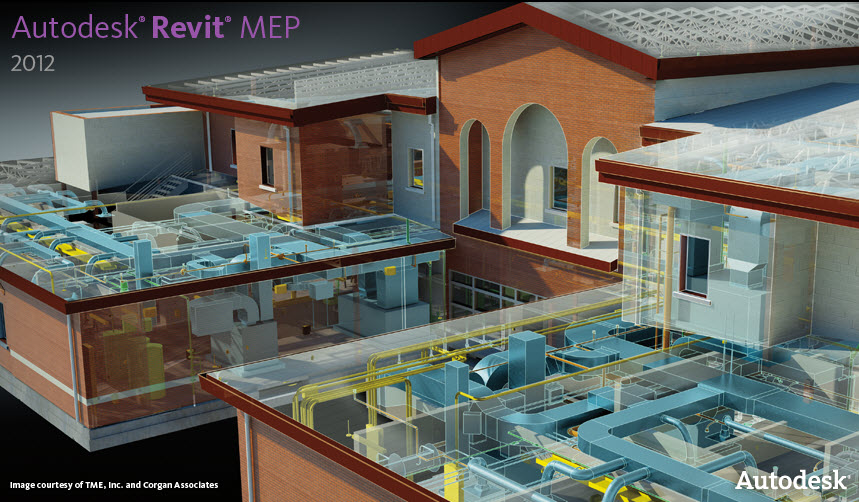
Revit MEP is the design and construction documentation solution for mechanical, electrical, and plumbing (MEP) engineering. Seamlessly collaborate with architects using Revit Architecture software in an intuitive design environment. Minimize coordination errors with architects and structural engineers using the Revit platform and building information modeling (BIM) workflows. And with BIM, provide better decision making and building performance analysis support for the engineer.
Friday, March 04, 2011
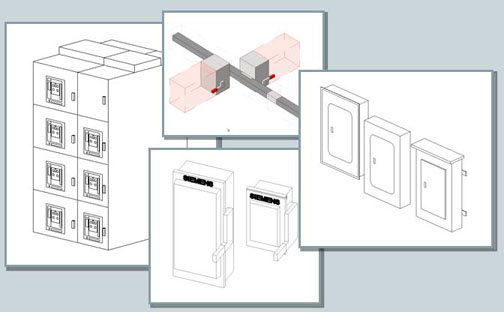
Electrical Building Information Modeling (BIM) for Revit® MEP Families Now Available from Siemens
Saturday, May 15, 2010
Troubleshooting Revit MEP
Overview of the Revit MEP Workflow
- Create new project using MEP template
- Save Arch model as central file on server
- Link in models using origin-to-origin
- setting links to be room bounding
- copy/monitor levels
- Setting up views and apply view templates to views
- create levels to account for plenum spaces
- space not visible in view
- rooms are "unoccupied"
Troubleshooting Revit MEP Performance
- Not following workflow
- not creating logical systems
- large connected duct networks
- complicated families
- poorly connected elements
- Limit color schemes
- place endcaps on open ducts
- ensure flow direction on connectors is correct
Tuesday, May 11, 2010
Family Jewels Blog - Creating Quality BIM Content for Revit MEP
A new Autodesk Website dedicated to BIM Content. Familiy Jewels - Creating Quality BIM Content
I've talked to a lot of users who have dabbled in Revit MEP, and have quit saying they will try again when Revit gets more family content. I don't remember AutoCAD coming with blocks back in the day. We ended up creating all of our AutoCAD blocks to match our company standard. It was a 25 year process. Every company seems to have their own standard which varies from the National CAD Standard, or even the National BIM Standard. If people end up waiting for someone to create all the content needed for for Revit MEP, you'll be waiting forever and never use the program. The idea of waiting for someone else to make my content didn’t seem to be a proactive approach. It's going to be another 25 year process of creating BIM content. A job that will never be complete. So getting started as soon as possible seems to be the best approach before falling behind.
People who have been using Revit Architecture or Revit MEP for a long period of time have either modeled from scratch or heavily customized nearly every family that is used in their projects. This means every piece of mechanical equipment, valve, air terminal, electrical device, lighting fixture, plumbing fixture, annotative tag, schedule, parameter and view reference. These users have done this not because they want to work with Revit, but because they want Revit to work for them. So how do you get Revit MEP work for you? One way is to seach for content directly from the manufacturer like Greenheck Fan, or by using Autodesk's Seek website. But the other way is by creating your own families. The families you create can be as simple as a box, yet still provide information about a mechanical system and help with coordination of your BIM model.
This blog will feature some tips and tricks of creating quality content, some free content, some links to manufacturer Revit content, and all sorts of information related directly to BIM content.
Monday, April 19, 2010
Upgrading Your Custom Revit MEP Library from 2010 to 2011 Format
The history of this issue is that everybody working on a Revit project must be using the same version of Revit. Architecture, Structural and MEP must all be the same. If one team is using an newer version, the other teams who are using an older format won't be able to read the newer format. The new format has new tools, new objects, and new settings that older versions don't understand, and weren't written to automatically know what new objects would be coming out in the future. Now if one team is using an older version, the other teams will be able to open an older version, and upgrade that project to the newest version, but the team using the older version won't be able to open the new format version of the other team members.
So now that we understand why we have to install multiple versions of Revit MEP on our workstations, we will also need to have multiple versions of Revit Libraries on our server. The 2011 directory, obviously will have the newest contect, and that content can only be used for 2011 projects. That content cannot be used for 2010 projects. So any 2010 project must use content from a 2010 content directory. Any custom 2010 content can be copied, and the copies can then be upgraded and added to the 2011 directory.
To Use the Content Batch Upgrade Utility:
- Copy Upgrade_RFA.txt and Upgrade_RFA.bat into the root directory of the library that you want to upgrade.
- Run the Upgrade_RFA.bat to create the file list to upgrade, famlist_rfa.txt.
- To launch the utility, from the library directory, drag Upgrade_RFA.txt onto the Revit icon on your desktop.
- After upgrading, delete all backup files from the library.
Wednesday, March 31, 2010
Automatic Transfer Switches in Revit MEP
by Martin Schmid, P.E. - MEP Customer Success Engineer
How do I incorporate an automatic transfer switch (ATS) into my electrical distribution model? Revit doesn’t have a family category for transfer switch, nor does it have a transfer switch part type for the Electrical Equipment category. Nonetheless, you can modify the provided “Automatic Transfer Switch.rfa” family that ships with Revit MEP 2010 to allow you to connect an emergency panel to both a normal power branch and an emergency power branch.
Say, for example, you have emergency loads, such as certain receptacles, connected to a panel EP1. You want to connect EP1 to an ATS, and then connect the ATS to an emergency distribution panel EDP, and a normal distribution panel MDP. Follow the steps below to make the necessary changes to the ATS family.
- Open the “Automatic Transfer Switch.rfa” family in family editor.
- Add an additional electrical connector. What surface you place it on does not matter.
- In the Instance Properties for the new connector, set the following properties (basically, copying the settings from the existing connector):
- Number of Poles > map to Number of Poles
- Load Classification: set to Other
- System Type: set to Power – Unbalanced
- Voltage > map to Switch Voltage
- Apparent Load Phase 1 > map to Apparent Load Phase A
- Apparent Load Phase 2 > map to Apparent Load Phase B
- Apparent Load Phase 3 > map to Apparent Load Phase C
- Load the family into your project, overwriting the existing family if applicable.
Now, you can connect EP1 to the ATS, and connect the ATS to both EDP and MDP. When you inspect the load information on EDP and MDP, you should see that the load information from EP1 feeds into both. The ATS doesn't actually 'switch' from normal to emergency in Revit, however, it should provide you with the connected load information you are looking for.
Thursday, February 04, 2010
Loren Cook families for Autodesk Revit MEP
Autodesk Revit families are available for every model and configuration of Loren Cook product. Each 3D parametric family is a full-scale representation of the product and contains all sizes available for that model. Each family includes information on duct connection size, electrical connection location, mounting holes (where applicable) as well as user defined attributes for airflow, static pressure, RPM, horsepower, voltage, phase, etc.The files designed by Loren Cook are for use in Autodesk Revit MEP 2009 or later. The files are free to download and are intended to be inserted using the standard Mechanical Equipment placement commands. Each family will need to be loaded into the user's project proir to use.
Click here to access their library of Revit files.
Saturday, January 16, 2010
Download the Revit Model Style Guide V2.1
Autodesk has put out another revised version of the Model Style Guide. The purpose of this guide is to define Autodesk guidelines and standards for model content creation in Revit Architecture, Revit MEP, and Revit Structure. Model content refers to the two‐dimensional and three‐dimensional standard component families that are used to create elements that represent manufactured content (for example, windows, furnaces, heat pumps, and structural steel members).
By following the guidelines and standards in this guide, content creators will ensure the portability and performance of their content, and fulfill the necessary distribution requirements for the Autodesk Seek web service. The Autodesk Seek web service requires:
- the uniform display of products offered by a single manufacturer
- complete, consistent, and accurate presentation of product data across manufacturers
- the full use of Autodesk Seek search capabilities
Go with the leaders. Working with industry experts and standards organizations, Autodesk has developed the Revit Model Style Guide to help you develop consistent, useful Revit models that design professionals can use with confidence.
Revit Model Style Guide
(zip - 3910Kb)
Monday, September 14, 2009
AEC Exchange tool in Revit MEP
Interoperability and Data Exchange
The enhanced AEC Exchange tool in Autodesk Inventor 2010 simplifies the exchange of data for use in building design. AEC Exchange allows users to publish data files with simplified 3D representations and intelligent connection points for use in building models created using Autodesk Revit MEP, Autodesk Revit Architecture, Autodesk AutoCAD MEP, and Autodesk AutoCAD Architecture software.
http://download.autodesk.com/us/inventor/videos/2010/5-inventor_aec_exchange/inventor_2010_aec_exchange_1300x860.html
Wednesday, September 09, 2009
McQuay Adds More Revit Family Files
Minneapolis, MN (Vocus/PRWEB ) September 9, 2009 -- McQuay International has expanded its library of Revit® family files for building information modeling (BIM) to include variable-geometry products such as Vision™ indoor and Skyline™ outdoor air handling units. The files are in Autodesk® Revit® MEP 2009 format and are available free from a McQuay sales representative.
"Air handlers are the most requested and yet among the most difficult products to model because of the tremendous variability in their geometry and connector locations," said Don Winter, vice president of marketing, McQuay. "Creating a standalone model for each variation would require engineers, architects and contractors using Revit MEP to wade through thousands of files to identify a model representing the correct size and connector locations for their project. McQuay's solution saves time by allowing users to start with a few base files and easily customize them to arrive at a fully functional model, with defined clearances, for each air handler in their project."
Because the air handler family files require customization, McQuay has developed an instructional video, available free from a McQuay sales representative, to help users fully benefit from their functionality. All other McQuay Revit family files can be downloaded from the McQuay website.
McQuay Vision indoor and Skyline outdoor air handler units are designed on a custom-modular platform and with McQuay's Variable Dimensioning™ feature, along with multiple configurations and component options. This flexibility allows engineers to design the exact air handling system to meet requirements for operating efficiency, indoor air quality, quiet operation and low installed and operating costs.
Monday, July 20, 2009
McQuay offers Revit MEP Families

McQuay has been creating a library of Building Information Modeling (BIM) object models and content for our HVAC products in support of our architect, MEP and contractor customers using Revit® technology.
http://www.mcquay.com/McQuay/BIM/Revit-BIMFiles
McQuay will continuously be adding and updating content on this web site, so please check back often for the latest models of McQuay and Daikin products.
While they’re always creating more content, not all McQuay products are available in Revit format yet. Please check back often, or subscribe to get e-mail updates.
Vision™ and Skyline™ Customized Air Handlers
Air Cooled Chiller Unit
Models:AGS
Zipped Revit 2009 content for 226 - 501 ton AGS-DP R-134A premium efficiency air cooled screw chillers. Includes instructions, shared parameters file and sample schedule.
Models:AGS
Zipped Revit 2009 content for 140 - 450 ton AGS-DS R-134A standard efficiency air cooled screw chillers. Includes instructions, shared parameters file and sample schedule.
Models:PDAA,PDAF,PDAN,PDHA,PDHF
Zipped Revit 2009 content for 16x42 Applied PTAC units (excluding replacement units). Includes models for PTAC and Heat Pump as well as PTAC with Top-mounted Hydronic Heat. Includes instructions, shared parameters file and sample schedule.
Models:VRVIII
Zipped Revit 2009 content for 0.6 - 4 ton Daikin VRV III Indoor Units (Fan-Coils). Includes instructions, shared parameters file and sample schedule.
Models:WMC
Zipped Revit 2009 content for 145 ton WMC-S single frictionless magnetic bearing compressor water cooled chillers. Includes instructions, shared parameters file and sample schedule.
Models:WMC
Zipped Revit 2009 content for 150 ton WMC-D dual frictionless magnetic bearing compressor water cooled chillers. Includes instructions, shared parameters file and sample schedule.
Models:WMC
Zipped Revit 2009 content for 250 ton WMC-D dual frictionless magnetic bearing compressor water cooled chillers. Includes instructions, shared parameters file and sample schedule.
Models:WMC
Zipped Revit 2009 content for 290 ton WMC-D dual frictionless magnetic bearing compressor water cooled chillers. Includes instructions, shared parameters file and sample schedule.
Models:WMC
Zipped Revit 2009 content for 400 ton WMC-D dual frictionless magnetic bearing compressor water cooled chillers. Includes instructions, shared parameters file and sample schedule.
Models:MHC,MHW
Zipped Revit 2009 content for 1/2 to 1-1/2 ton R-410A Console Enfinity Water Source Heat Pumps. Includes instructions, shared parameters file and sample schedule.
Models:CCH,CCW
Zipped Revit 2009 content for 1/2 to 6 ton R-410A Horizontal Enfinity Water Source Heat Pumps. Includes instructions, shared parameters file and sample schedule.
Models:CMG,CMS
Zipped Revit 2009 content for 6 to 10 ton R-22 Horizontal Water Source Heat Pumps. Includes instructions, shared parameters file and sample schedule.
Models:LMG,LMS
Zipped Revit 2009 content for 6 to 25 ton R-22 Vertical Water Source Heat Pumps. Includes instructions, shared parameters file and sample schedule.
Models:VFC,VFW
Zipped Revit 2009 content for 1-1/2 to 6 ton R-410A Vertical Enfinity Water Source Heat Pumps. Includes instructions, shared parameters file and sample schedule.
Tuesday, July 07, 2009
Greenheck Fan offers Revit MEP Families

Last year, I had the pleasure of working with Jason Spleha of Greenheck Fan and working with them to get some of their equipment created in Revit. They've done a wonderful job in creating the content. Jason came with knowledge of using Inventor software, so creating parametric families was nothing new for him.
Greenheck is pleased to offer downloadable CAD drawings and Revit families for BIM (Building Information Modeling). The AutoCAD drawings are in a .dwg format and are accessible in AutoCad 2002 or newer. The Revit families are in a .rfa format and include a .txt file. They are accessible from Revit 2009 Architect, Structure or MEP programs.
Drawings will be added as available, so keep checking back for the latest CAD and Revit drawings.
http://www.greenheck.com/drawings/
Scaled Drawings
- Roof Mounted Fans
- Gravity Ventilators
- Inline and Ceiling Fans
- Sidewall Fans
- Utility, Centrifugal and Radial Blowers
- Energy Recovery Ventilators
- Laboratory Exhaust
- Fan Coils
- Louvers
- Make-Up Air
- Dampers
Jason Spleha
System Specialist (BIM)
Building Information Modeling
Greenheck Fan Corporation
Phone: 715.355.3962
bim@greenheck.com
Friday, June 13, 2008
Visa Lighting 3D Models Available in Sketch Up
In addition to Sketch Up, Visa Lighting is already established in Autodesk Revit and Microstation Bentley formats. Revit families are available on disk, the Visa Lighting website, at bimworld.com and in Autodesk SEEK. SEEK is an online file source for building product information, including 3D models, 2D drawings, visual images, and product specification data. Bentley files are currently available on the BIM World website. BIM World is a free service for designers and architects seeking manufacturers' content.
Friday, August 24, 2007
Tip When Creating Revit MEP Content
For example, you cannot place a ceiling-hosted family on a linked ceiling or a wall-hosted family in a wall. The ceiling or wall needs to actually exist in the "host" model for you to be able to host a Light Fixture on it. This is how element hosting works in Revit.
The solution here is to use a Face-hosted Light Fixture family. Revit can detect the face of a ceiling through a link and therefore the Lighting Fixture can be hosted on that face.
Second, element-hosted families will be deleted if the linked element host is deleted. This is not true for Face-Hosted families. Face-Hosted families will be unhosted if their host face is deleted. which makes them sit in 3D space where they were originally. You can then re-host them to another face if you'd like.
So if you are creating your own MEP families, use a Face-hosted template so that your content can be placed in a linked file.
Following are the basic kinds of family templates:
- Wall-based
- Ceiling-based
- Floor-based
- Roof-based
- Standalone
- Line-based
- Face-based
The wall-based template is for components inserted into walls. Wall components can include openings, such that when you place the component on a wall, it also cuts an opening in the wall. Some examples of wall-based components include doors, windows, and lighting fixtures. Each template includes a wall; the wall is necessary for showing how the component fits in a wall.
The ceiling-based template is for components inserted into ceilings. Ceiling components can include openings, so that when you place the component on a ceiling, it also cuts an opening in the ceiling. Examples of ceiling-based families include sprinklers and recessed lighting fixtures.
The floor-based template is for components inserted into floors. Floor components can include openings, so that when you place the component on a floor, it also cuts an opening in the floor. An example of a floor-based family is a heating register.
The roof-based template is for components inserted into roofs. Roof components can include openings, so that when you place the component on a roof, it also cuts an opening in the roof. Examples of roof-based families include soffits and fans.
The standalone template is for components that are not host-dependent. A standalone component can appear anywhere in a model and can be dimensioned to other standalone or host-based components. Examples of standalone families include columns, furniture, and appliances.
The line-based template is for creating detail and model families that use 2-pick placement similar to structural beams. For information about detail families with 2-pick placement.
The face-based template is for creating work plane-based families that can modify their hosts. Families created from the template can make complex cuts in hosts. Instances of these families can be placed on any surface, regardless of its orientation.


